

Seerr Requests – Complete Walkthrough
Use Seerr to request Movies & TV. It’s simple, fast, and (right now) Plex-login only.
Request Access
Submit the form below to get access. Once approved, continue to Step 1.
Note, you do not need to request access if you already have access to Plex.
Open Seerr
Important: Seerr currently only supports Plex Authentication. If you use Jellyfin, don’t worry: requests here still go to the same library system. Jellyfin requests will eventually be built directly into the Jellyfin interface.
Step 1: Login to Seerr (Plex Required)
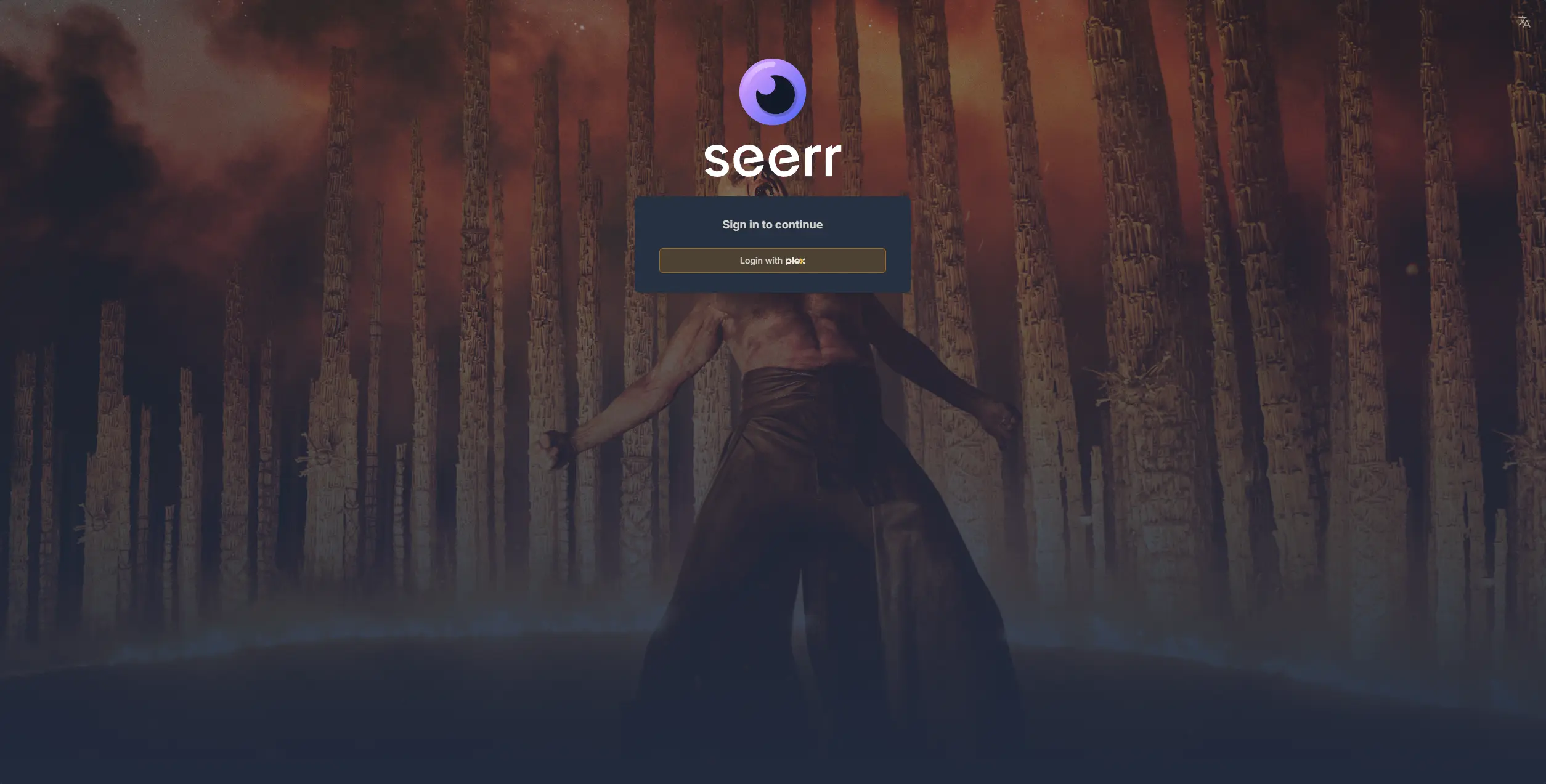
- Go to
https://request.thedeepzone.app - Click Login with Plex.
Step 2: Approve Plex Sign-In
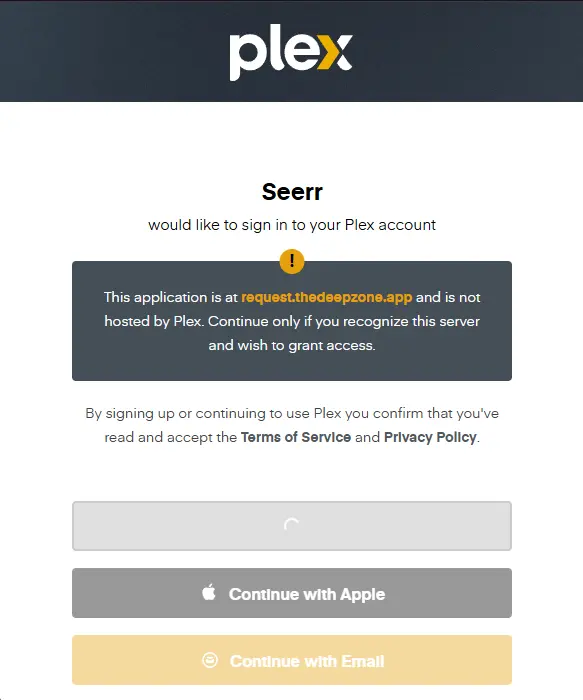
- You’ll see a Plex page confirming this app is hosted at
request.thedeepzone.app(not by Plex). - Continue only if you recognize it.
- Sign in with your Plex account (Apple / Email / etc.).
Step 3: Confirm You’re In (Home Screen)
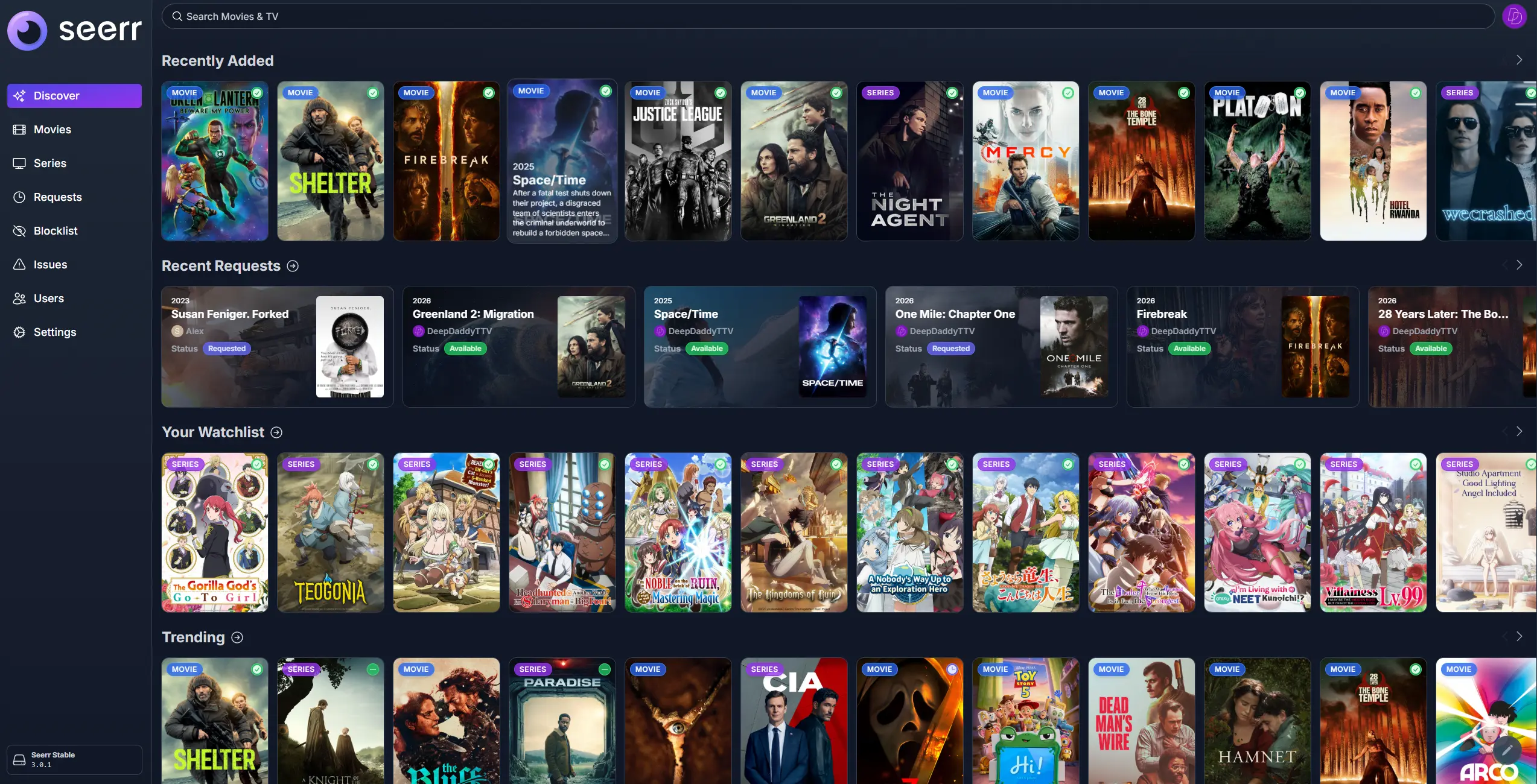
- If you see the Seerr sidebar (Discover, Movies, Series, Requests), you’re logged in.
- Use the top search bar to find what you want.
Step 4: Understand Availability Status Icons
Before you request anything, Seerr shows quick “at a glance” availability indicators on posters:

- ✅ Green Checkmark = It’s available (you can watch it now).
- ➖ Green Dash = Partially available (some seasons/episodes exist, but not all).
- No icon = Not available (request it).
In other words: checkmark means “go watch”, dash means “some of it’s here”, and blank means “make the request”.
Step 5: Find Something to Request
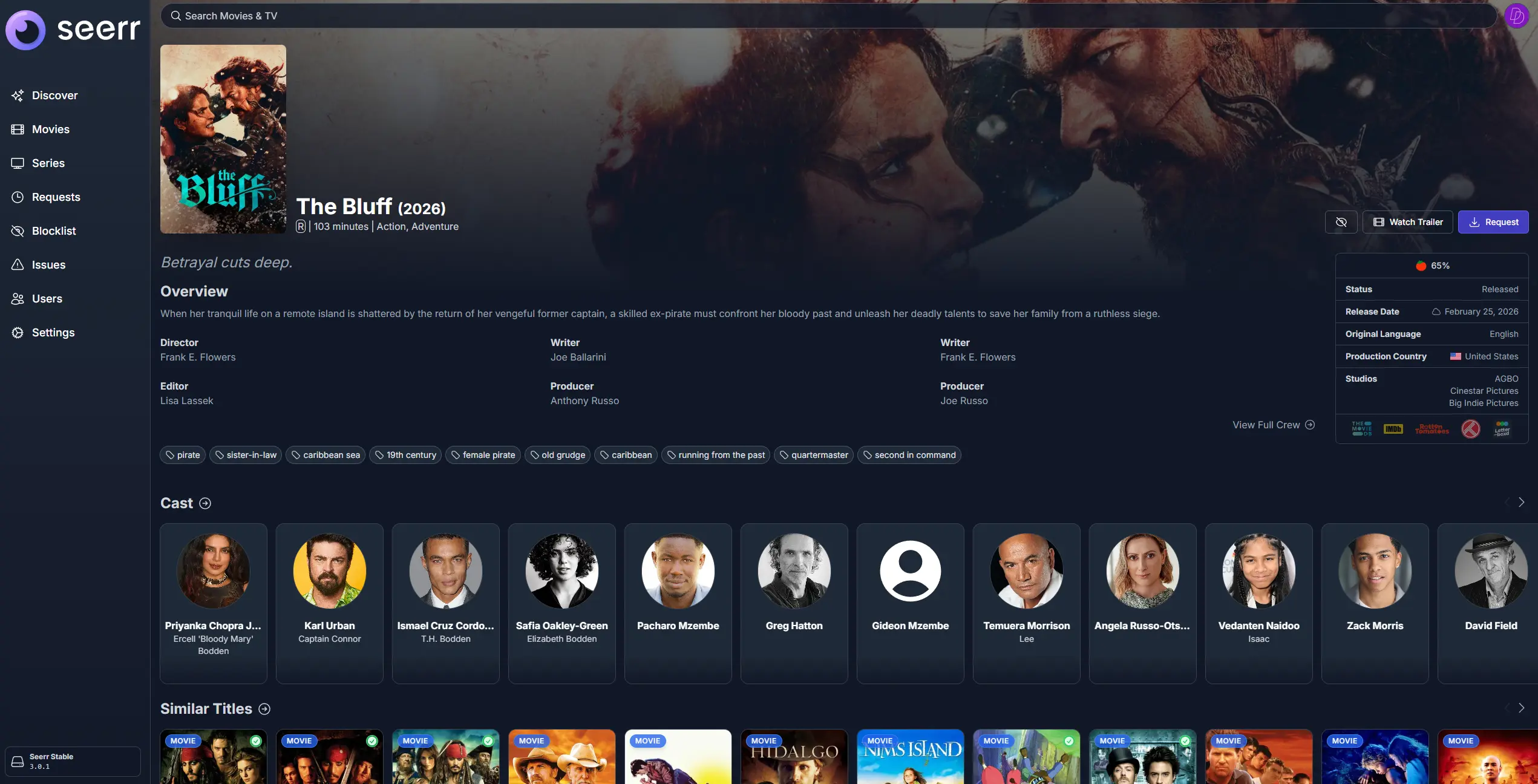
- Use Discover to browse trending and recommended titles.
- Or type the title name in the top search bar.
- Click the poster to open the details page.
Step 6: Request a Movie
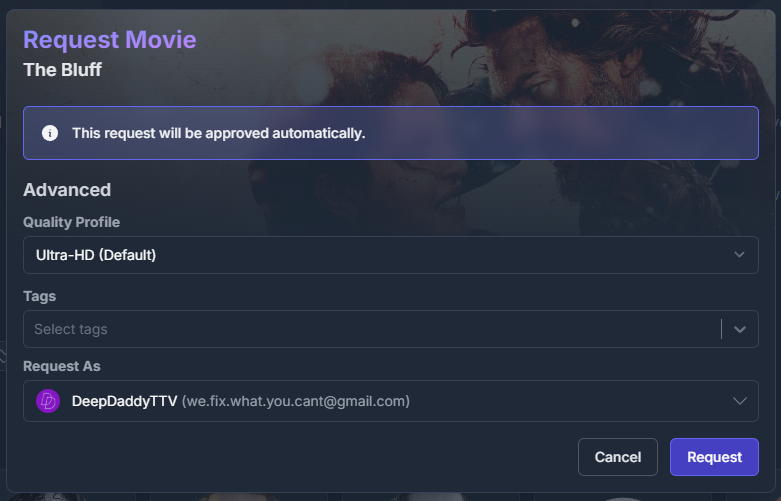
- Open the movie page.
- Click Request (top right).
- Confirm options if shown, then submit.
- Note: Some anime movies may show as if they are available to request. This is due to how the libraries are managed. Anime movies are generally placed in the "Specials" folder within the show itself. There are few exceptions. Please check there before requesting anime movies.
Step 7: Request a TV Show (Select Seasons)
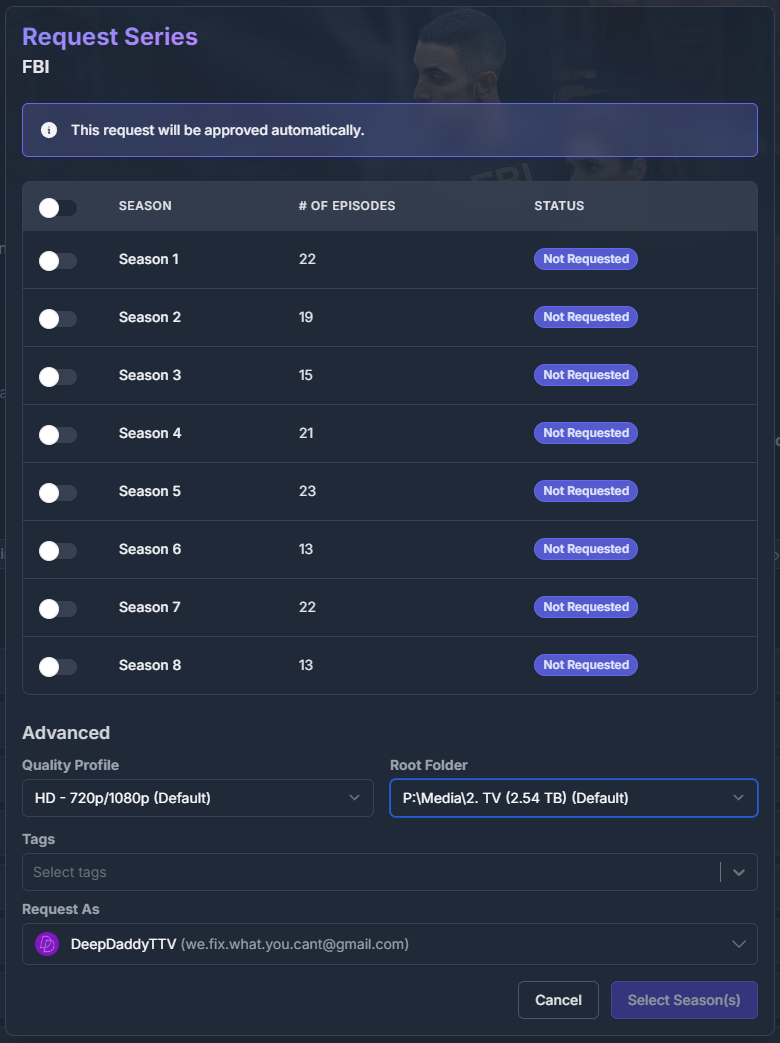
- Open the show page.
- Click Request.
- Select the season(s) you want.
- Click Select Season(s) / Request to submit.
Tip: If a show has the ➖ green dash, it means some seasons are already available. You can request only the missing ones.
Done ✅
- Seerr uses Plex login only (for now).
- Requests here go to the same library system as Jellyfin.
- Check Requests to see what you’ve submitted and its status.