

Plex Setup – Complete Walkthrough
Follow these steps to join The Deep Zone, complete onboarding, and configure Plex properly.
Request Access
Submit the form below to get your invite/code. Once you receive it, start Step 1.
Step 1: Open the Invite & Enter Code
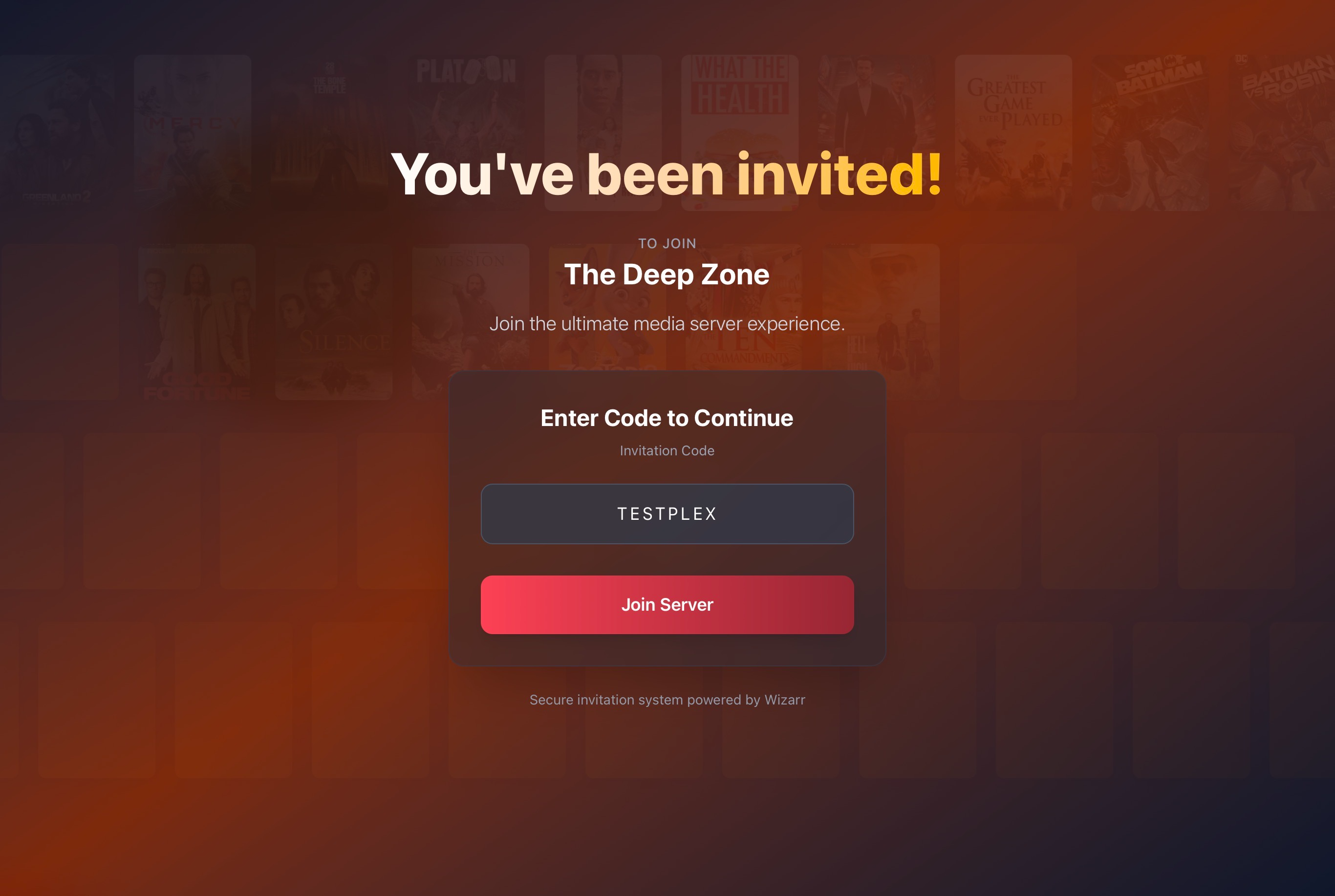
- Open the invite page for The Deep Zone.
- Enter your invitation code if it doesn't automatically insert (example shown:
TESTPLEX). - Click Join Server.
Step 2: Sign Into Plex
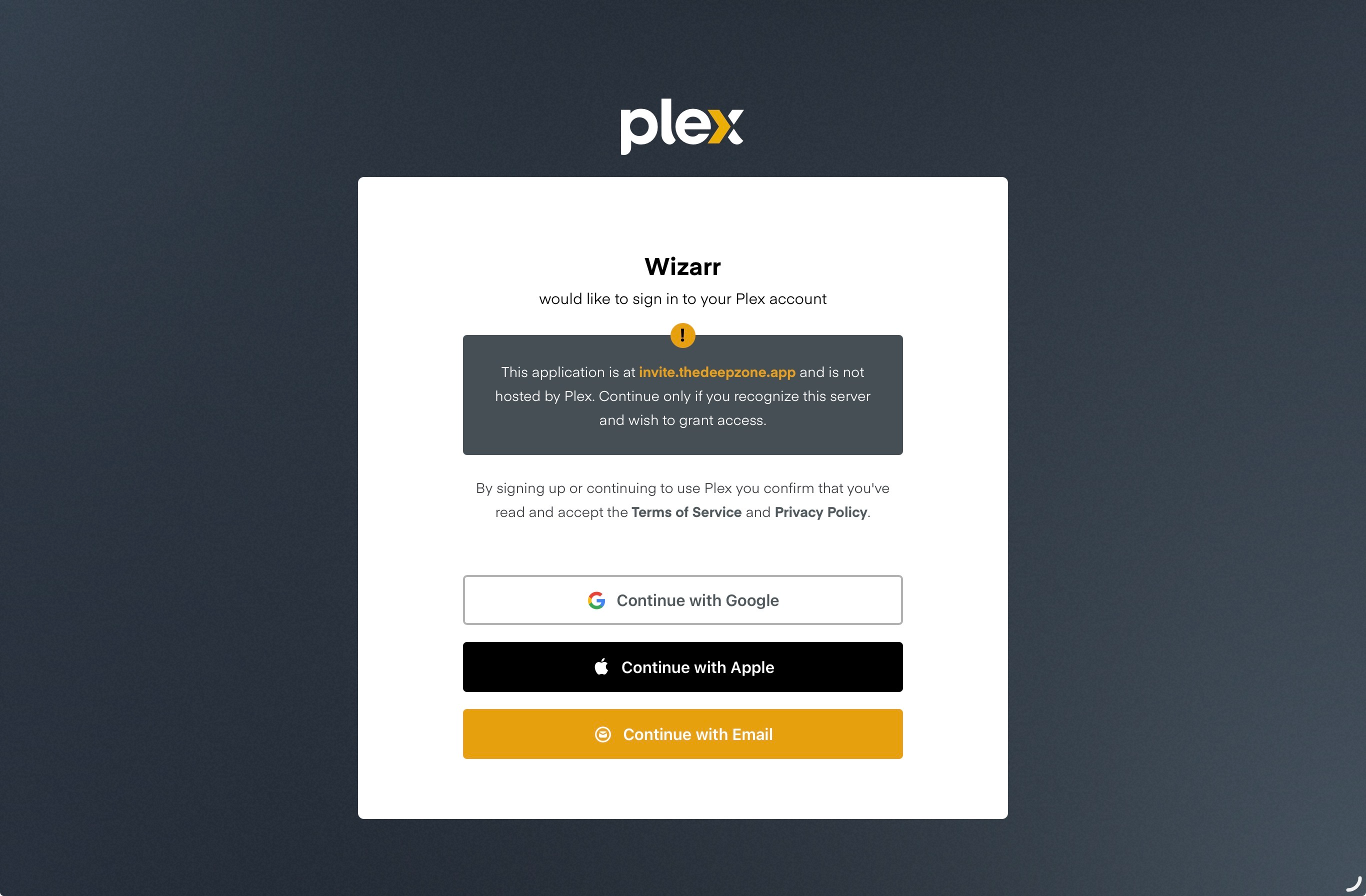
- You’ll be redirected to Plex login.
- Choose:
- Continue with Google
- Continue with Apple
- Continue with Email
- Make sure the domain matches your invite.thedeepzone.app.
Step 3: Confirm Login Success
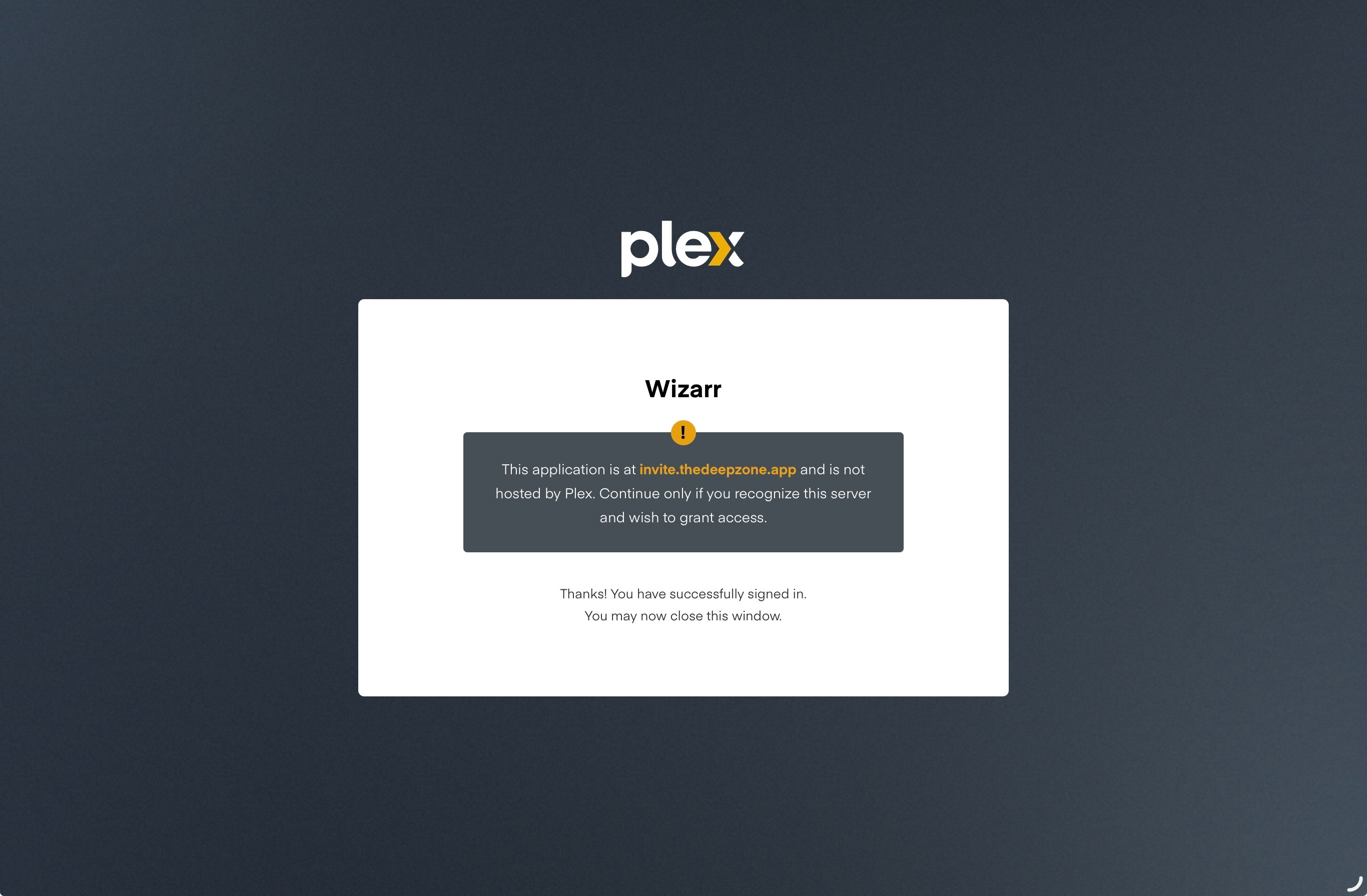
- After authentication, you’ll see a confirmation screen.
- You may now close that window and return to the invite flow if needed.
Step 4: Welcome Screen (Onboarding 1/3)
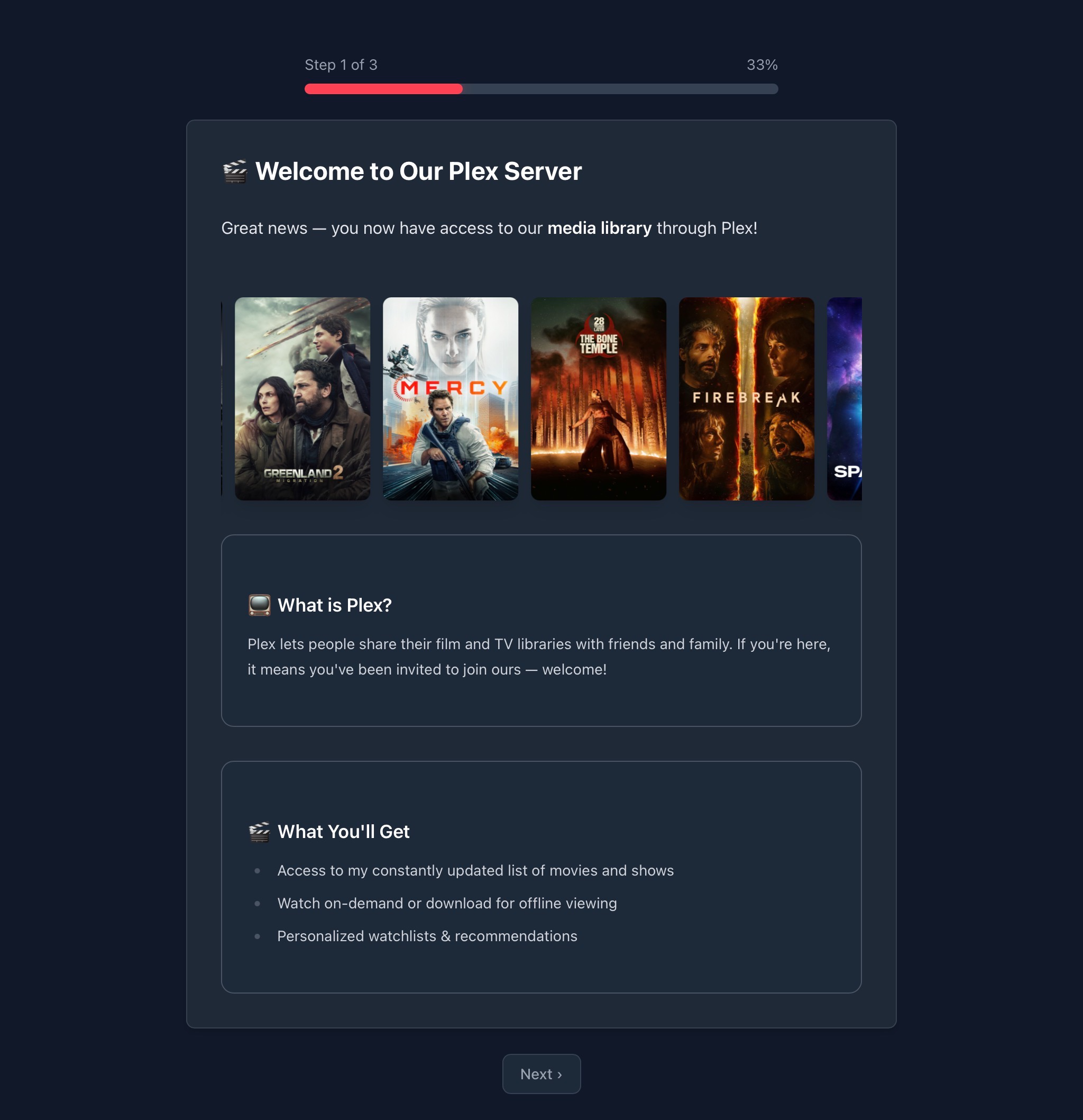
- Read the welcome message.
- Click Next.
Step 5: Download Plex Clients (Onboarding 2/3)
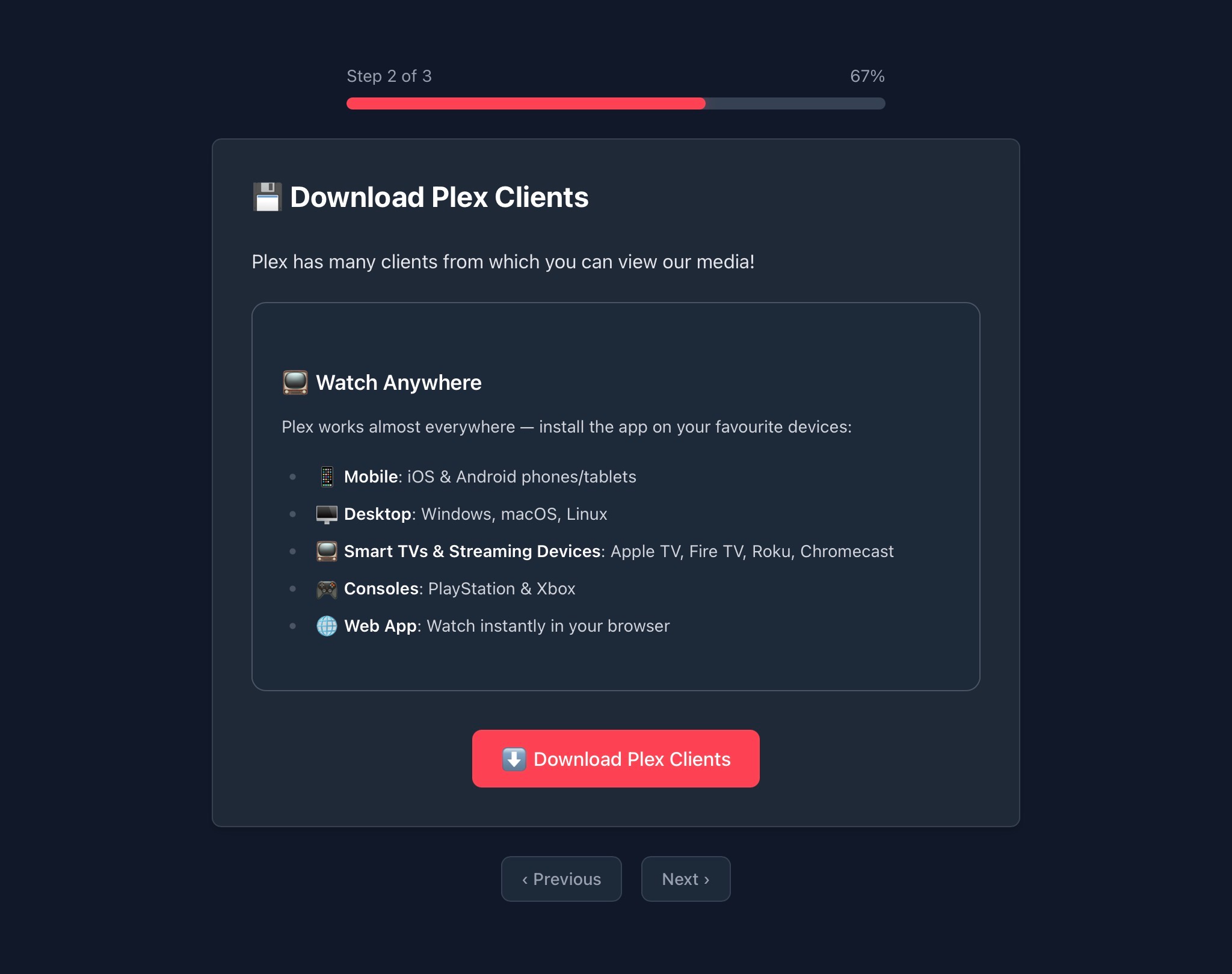
Install Plex on the device you actually watch on. Here are the direct links:
- Plex works on Mobile, Desktop, Smart TVs & Streaming Devices, and Web Browsers.
- Click Next.
Step 6: Optimize Playback Quality (Onboarding 3/3)
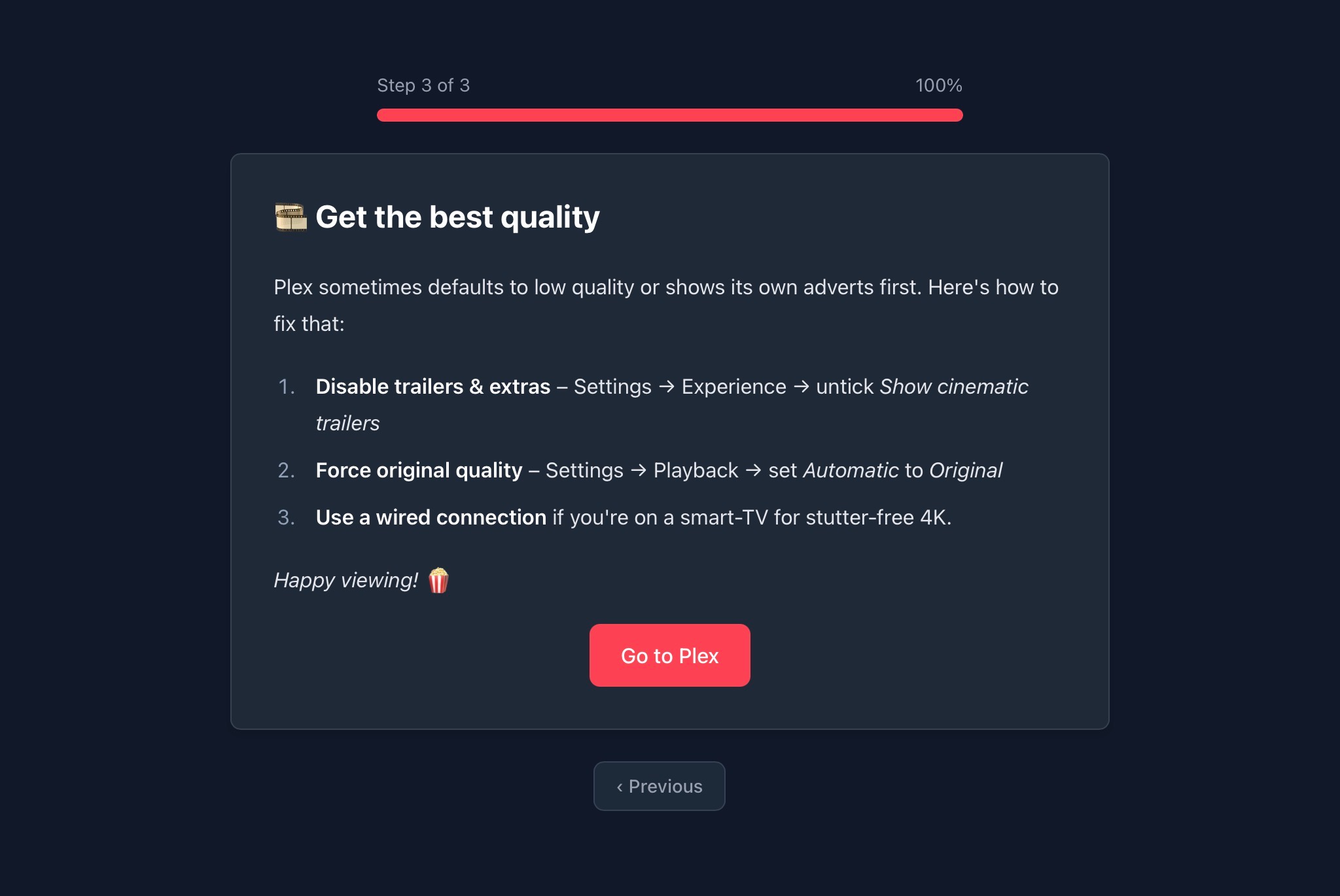
- Disable cinematic trailers:
- Settings → Experience → Untick “Show cinematic trailers”
- Force original quality:
- Settings → Playback → Set Automatic to Original
- Use wired connection for best 4K stability.
- These settings can be applied later. While they are recommended, they aren't mandatory and your mileage may vary.
- Click Go to Plex.
Step 7: Customize Your Sidebar
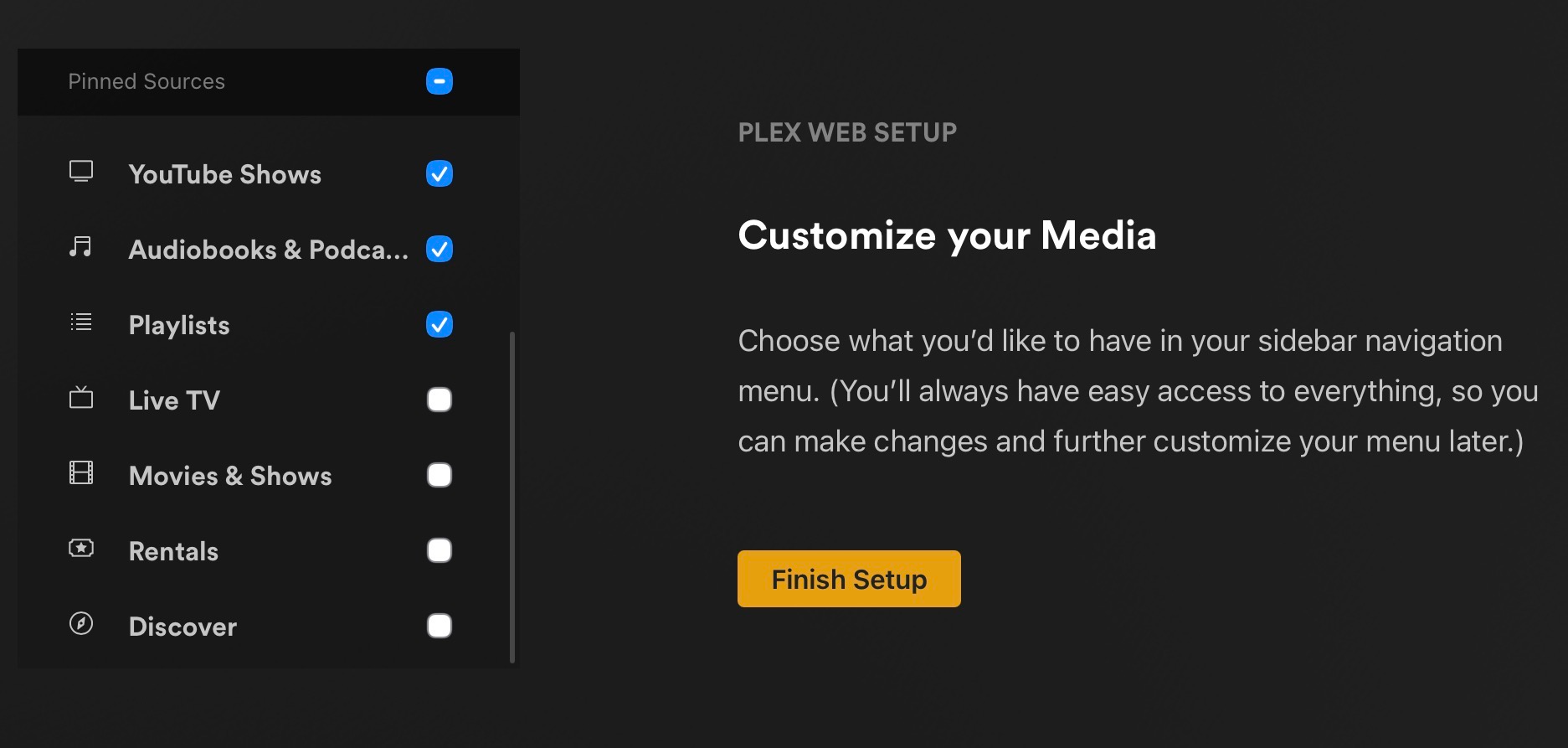
- Select the content sources you want pinned:
- Watchlist
- Movies
- Anime
- Cartoons & Animation
- TV Shows
- YouTube Shows
- Playlists
- The important thing here is to disable all sources that aren't from the server. You may have more or less options here depending on the libraries you are given access to.
- Click Finish Setup.
Step 8: Open Account Settings
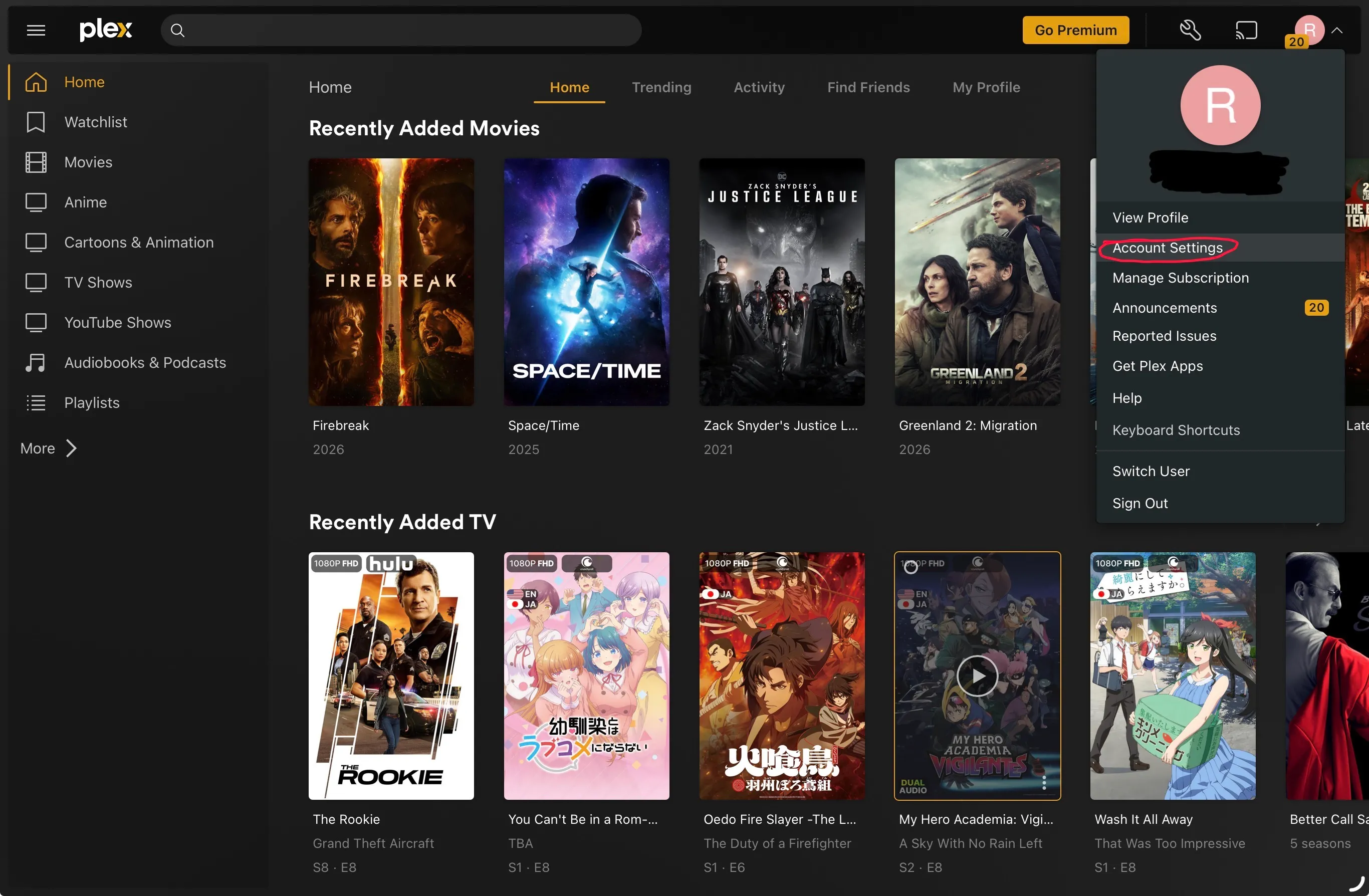
- Click your profile icon (top right).
- Select Account Settings.
Step 9: Disable Plex Online Media Sources
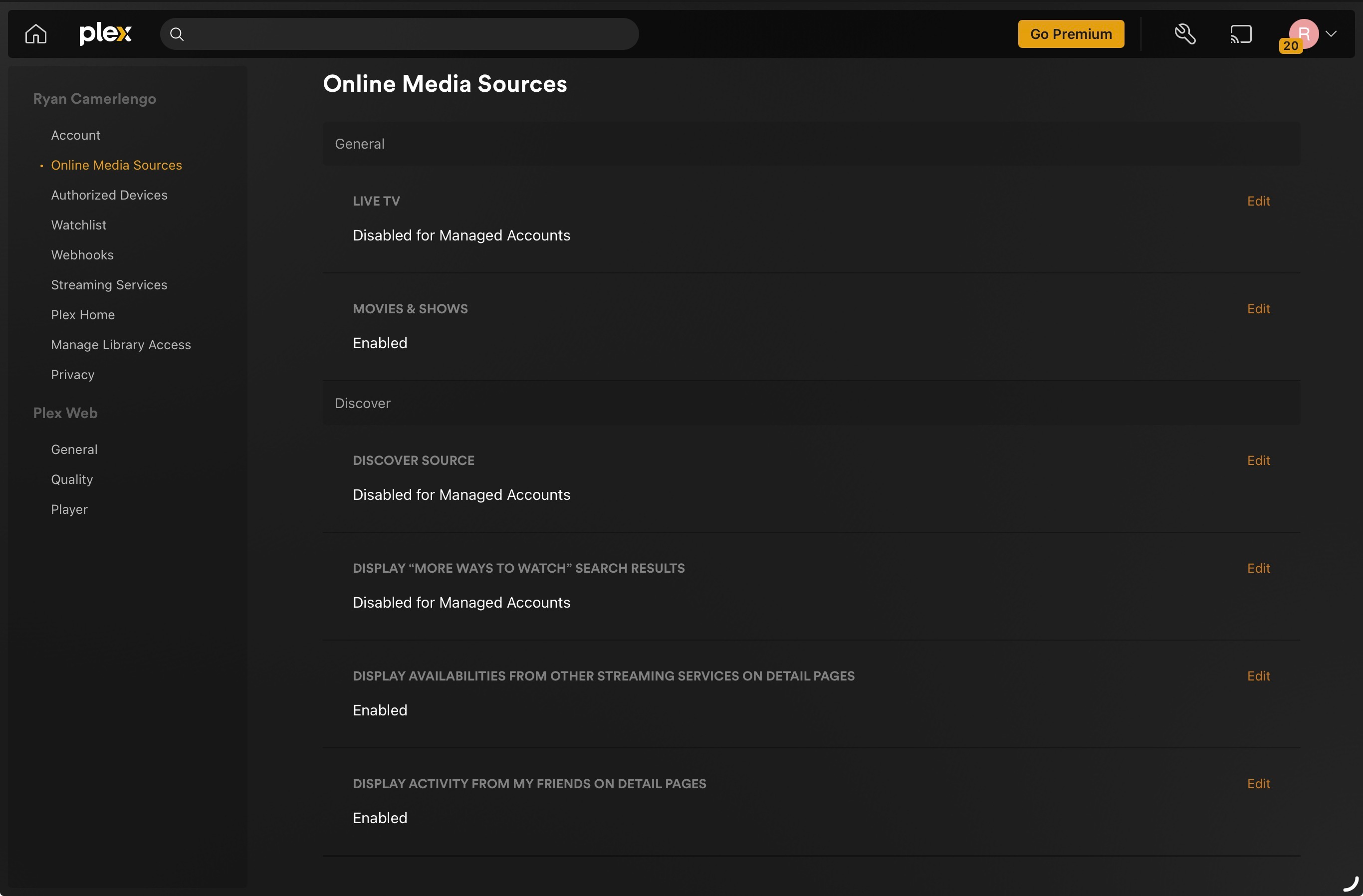
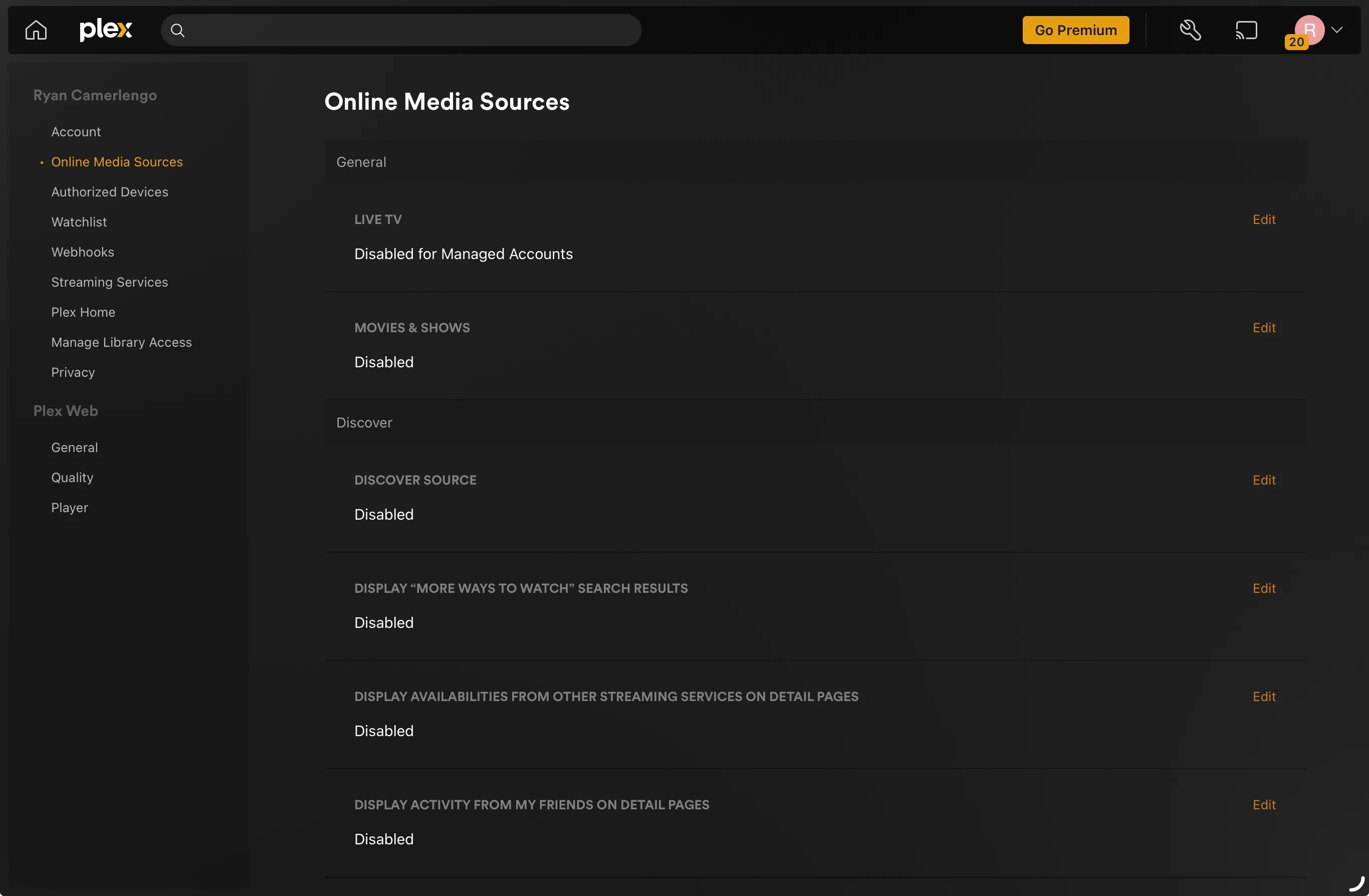
- Go to Online Media Sources.
- Disable:
- Live TV
- Movies & Shows
- Discover Source
- “More Ways to Watch”
- Availability from other streaming services
- Activity from friends
Step 10: Plex First Launch on Mobile
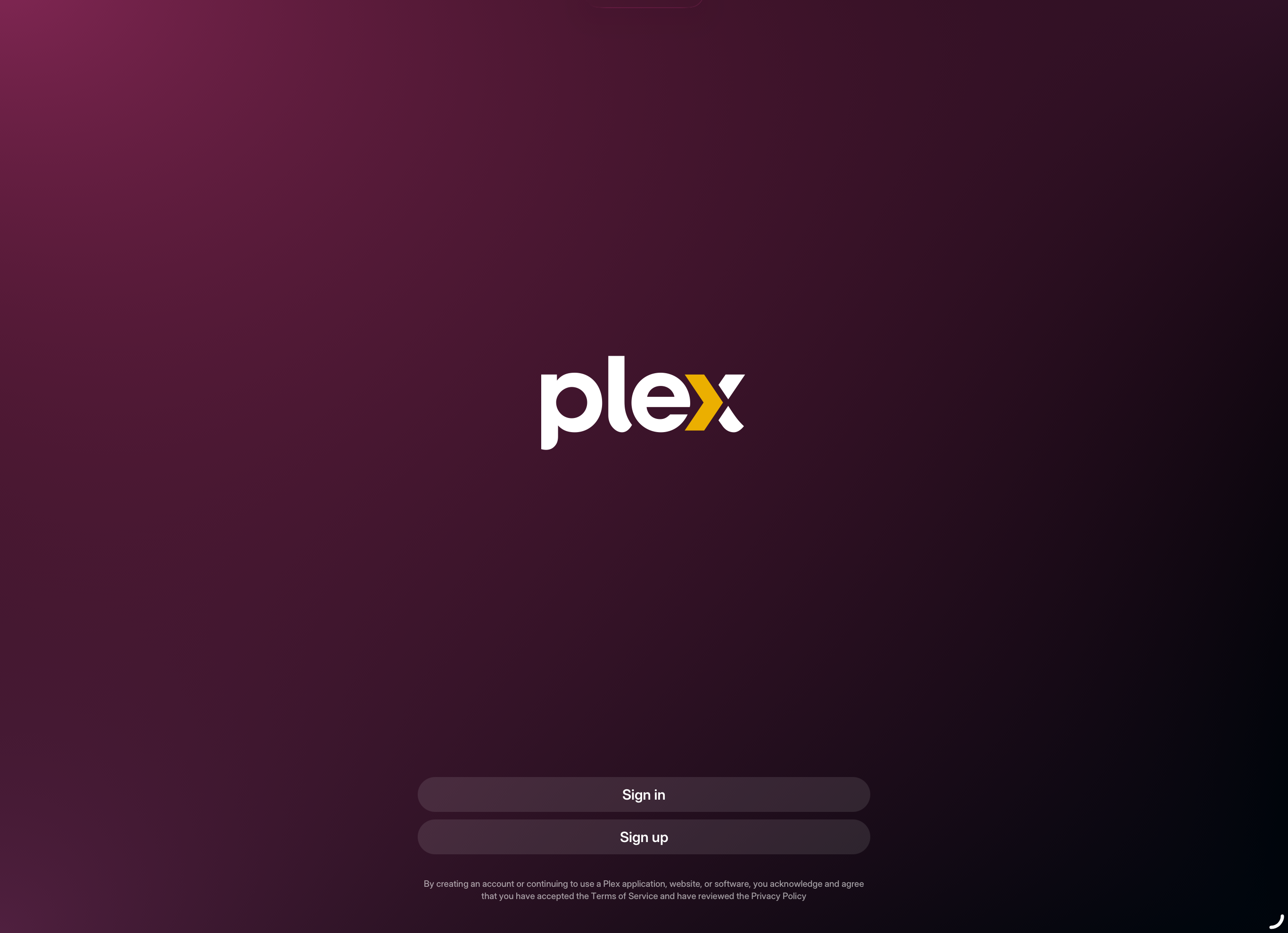
- Open the Plex app on your phone/tablet.
- If prompted, tap Sign in (use the same Plex account you used for the invite).
- Once signed in, let it finish loading your home screen. You should now see The Deep Zone libraries appear.
- If you accidentally hit Sign up, back out and choose Sign in instead.
Step 11: Pick Your Favorite Libraries
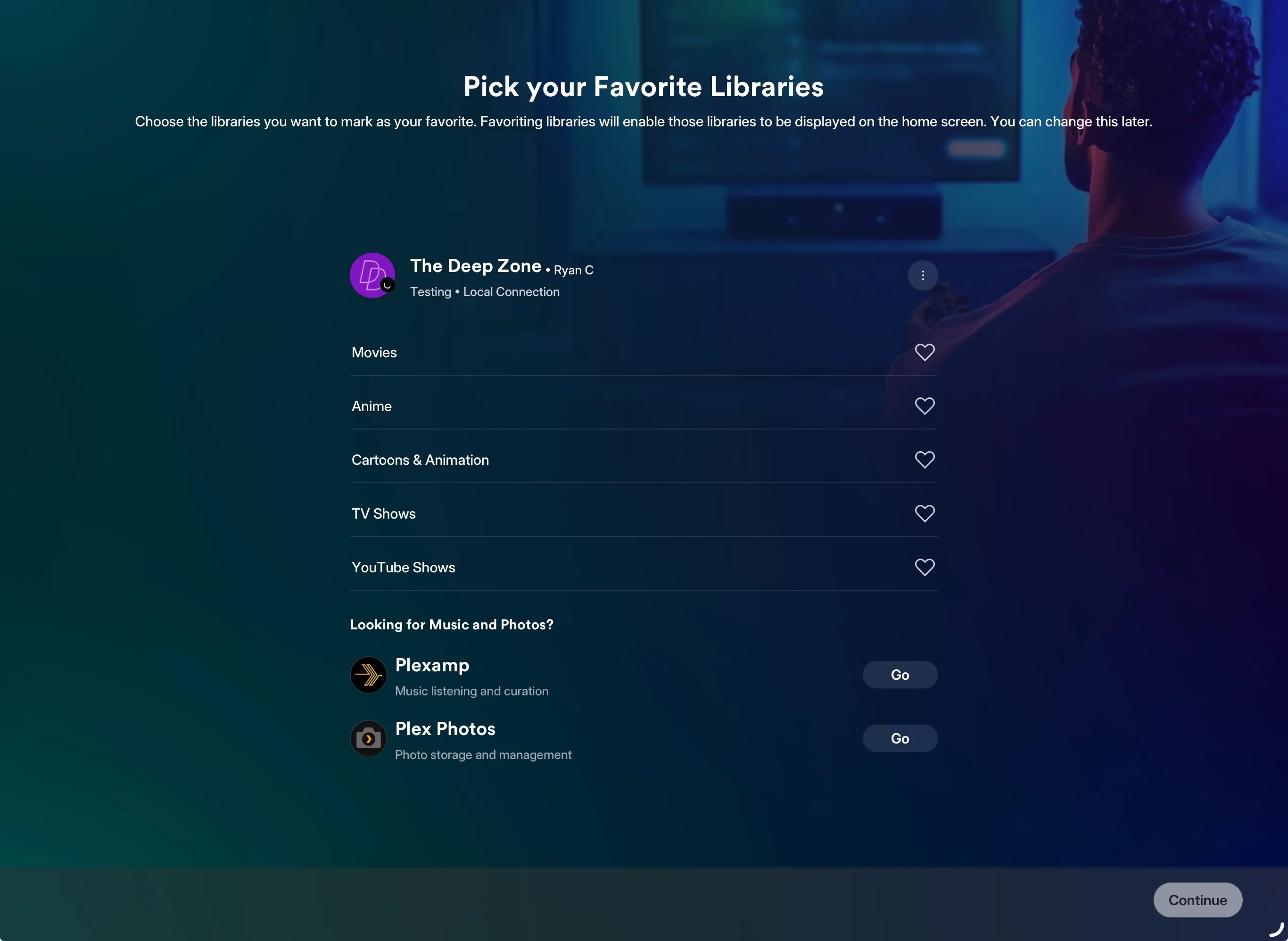
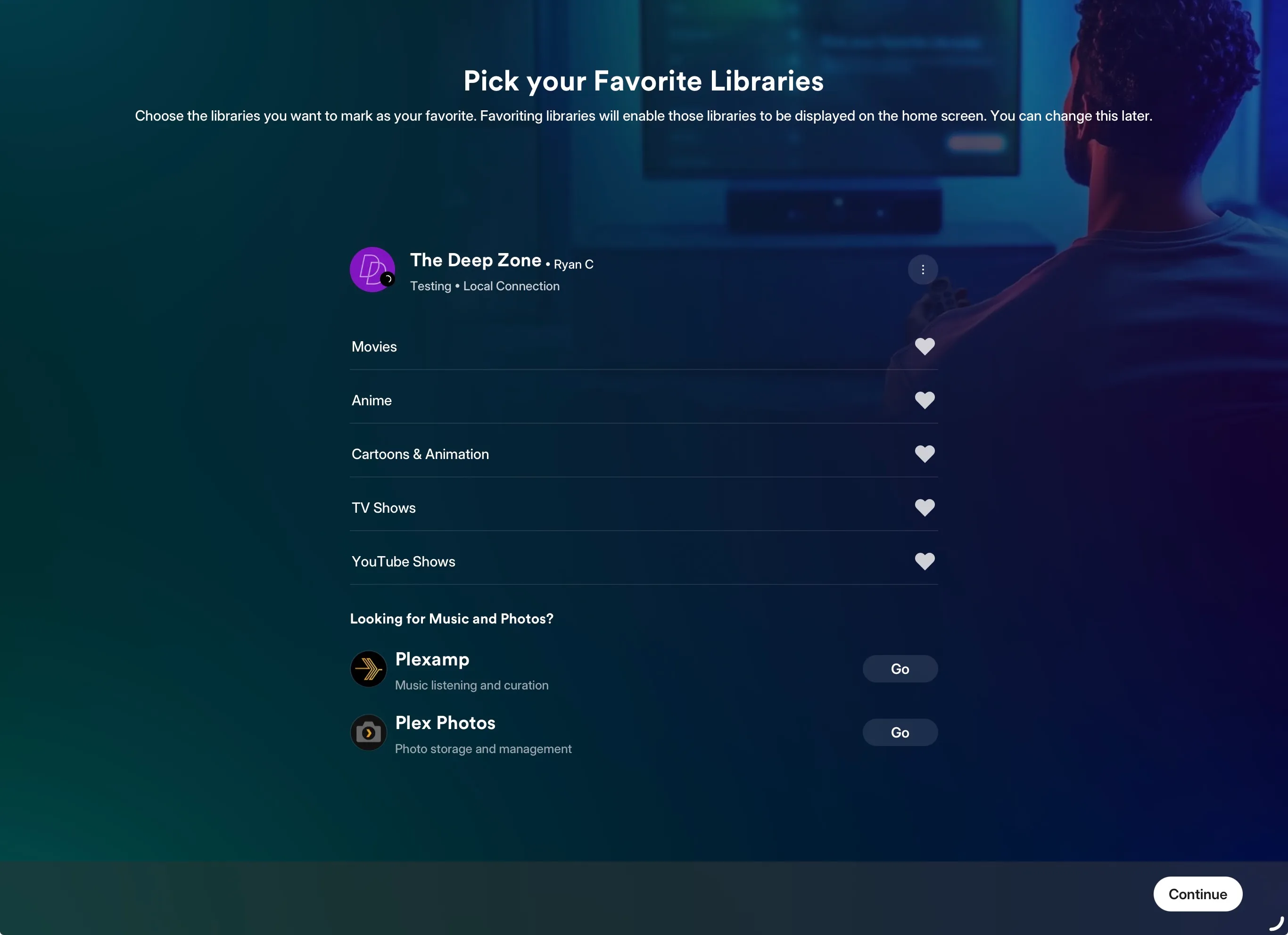
- On Pick your Favorite Libraries, tap the heart icons next to the libraries you want pinned on your home screen.
- Typical picks:
- Movies
- Anime
- Cartoons & Animation
- TV Shows
- YouTube Shows
- Tap Continue.
Step 12: Confirm Your Plex Home Screen Looks Right
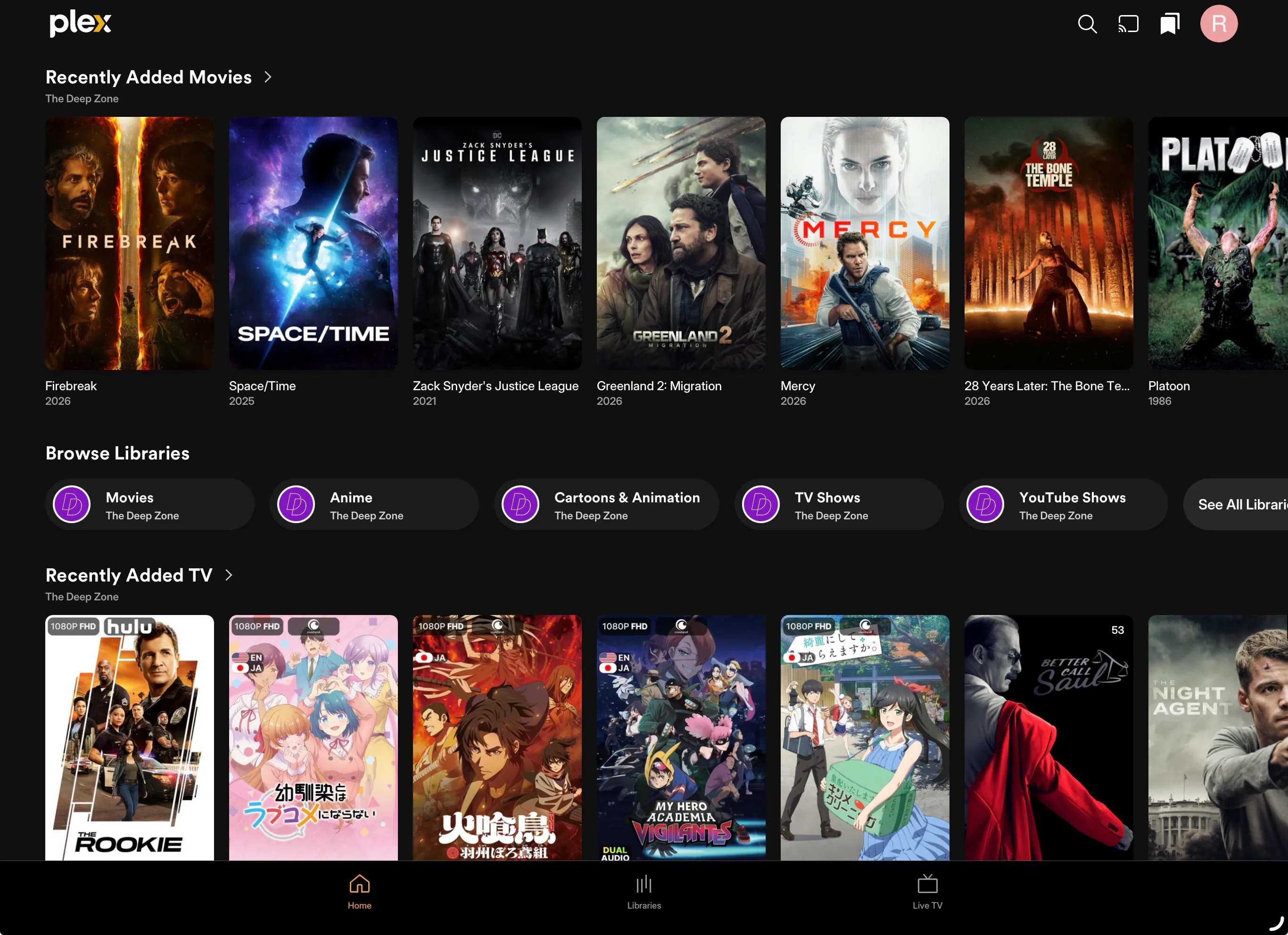
- You should now see content rows like:
- Recently Added Movies
- Browse Libraries
- Recently Added TV
- If you see a bunch of Plex ad content or “free” stuff, revisit Step 9 and make sure all Online Media Sources are disabled.
Step 13: Set Your Default Library View (Mobile)
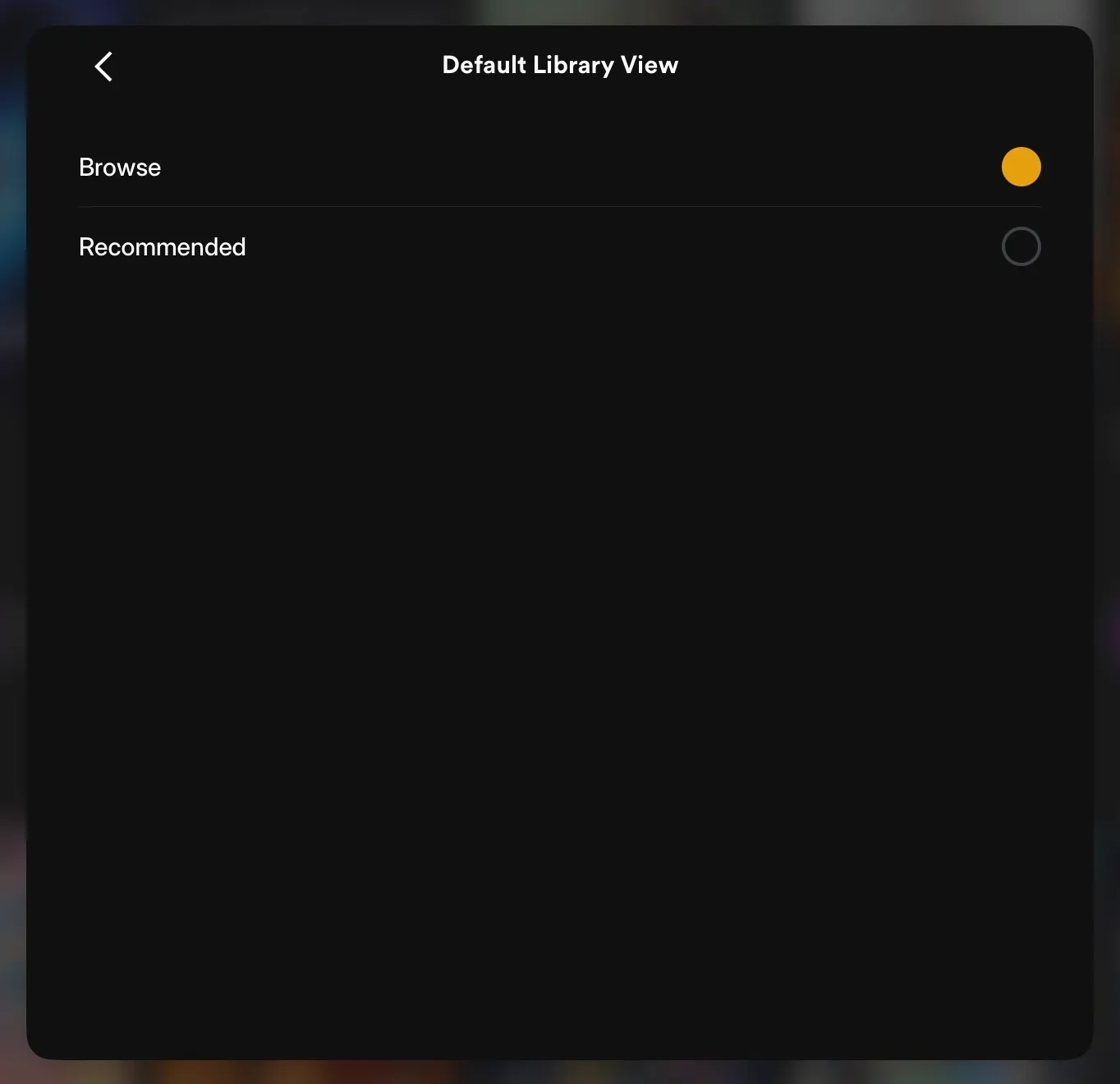
- Tap on your profile icon.
- Tap Settings.
- Tap Experience.
- Set the Default Library View to Browse.
Setup Complete 🎉
- You’ve joined the server and confirmed access.
- Your sidebar is pinned to server libraries (not Plex extras).
- Online Media Sources are disabled (less noise, more content).
- Favorites are set, and your library view is clean.
Enjoy The Deep Zone.