

Jellyfin Setup – Complete Walkthrough
Follow these steps to join The Deep Zone, complete onboarding, and configure Jellyfin properly.
Request Access
Submit the form below to get your invite. Once you receive it, start Step 1.
Step 1: Open the Invite
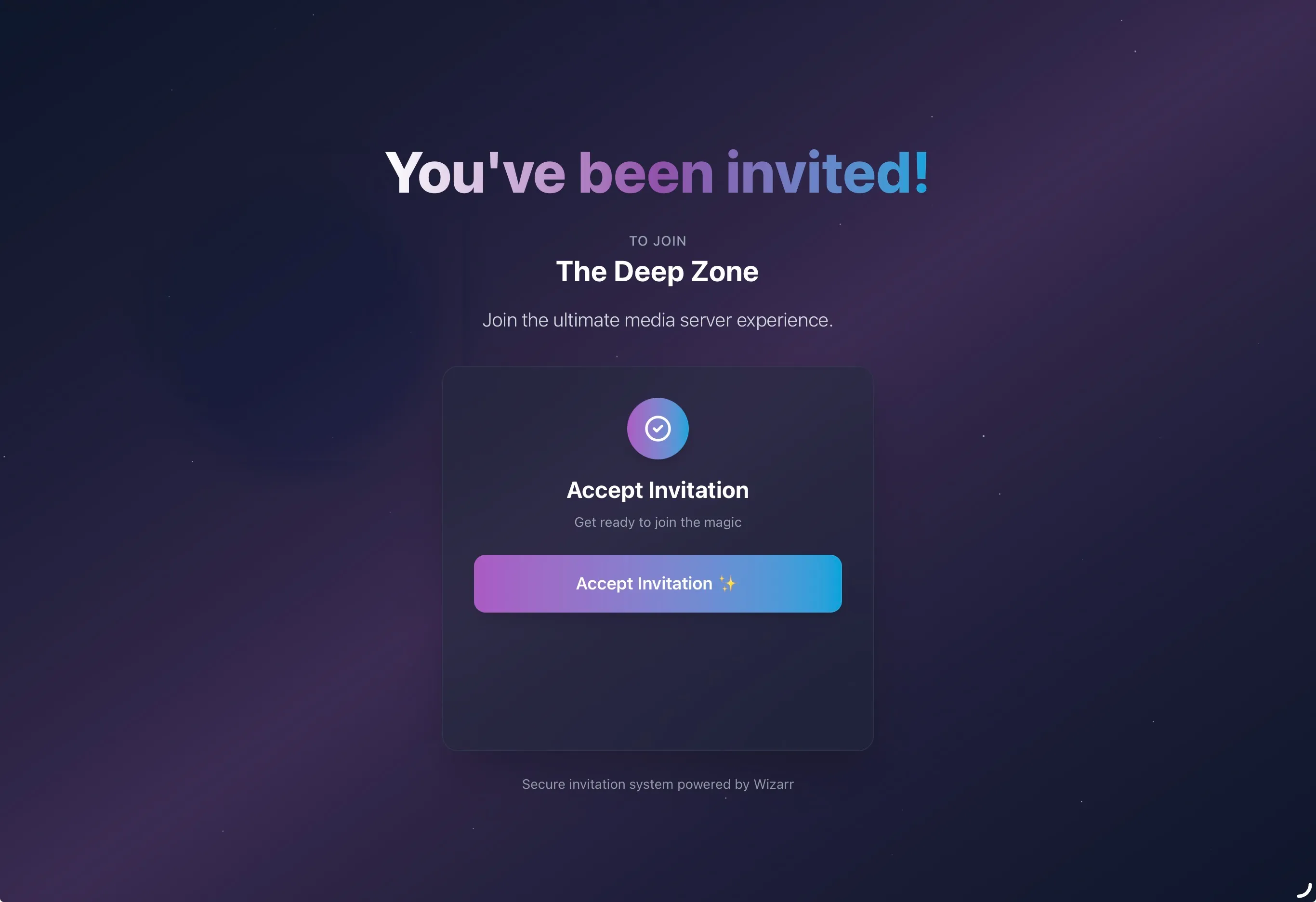
- Open your invitation link for The Deep Zone.
- Click Accept Invitation.
Step 2: Create Your Account
Despite filling out the form, the invitation process allows you to create your account directly. For Jellyfin, that means I wipe the data on the rest of the form besides the email for the invite.
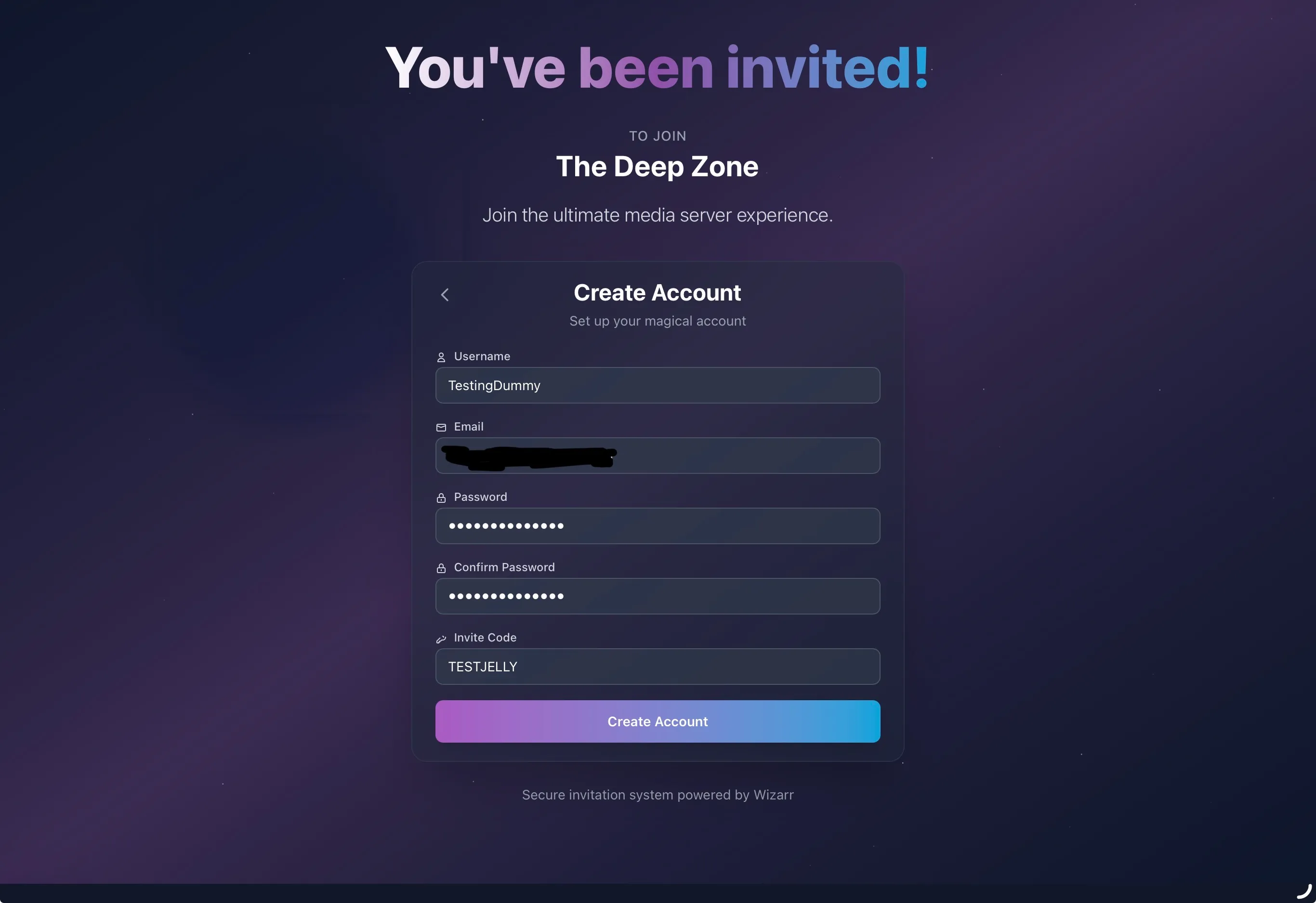
- Choose a username.
- Enter your email address and create a password.
- Enter the invitation code if it does not autofill.
- Click Create Account.
Step 3: Welcome Screen (Onboarding 1/3)
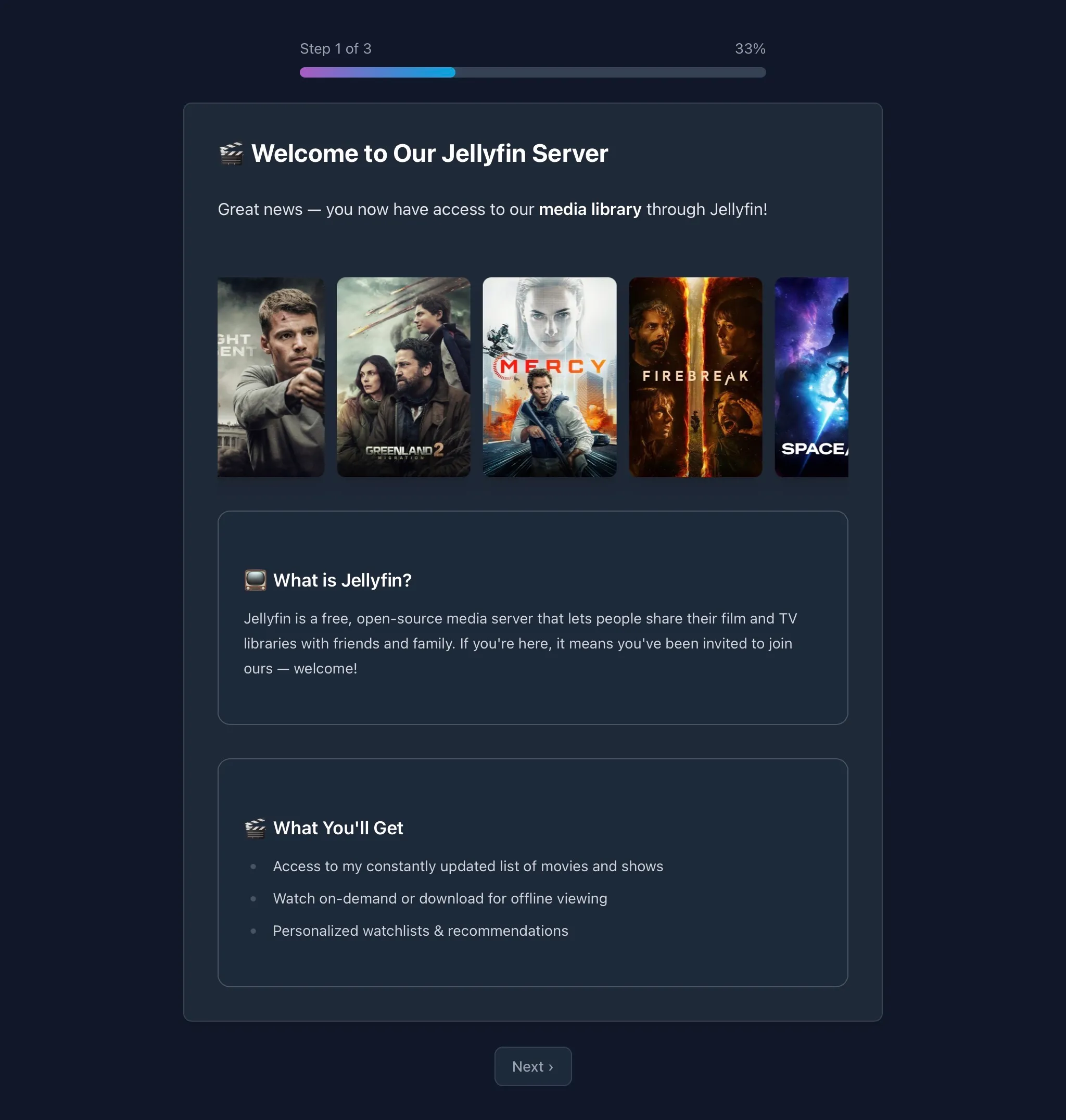
- Review the welcome information.
- Click Next to continue.
Step 4: Download Jellyfin Clients (Onboarding 2/3)
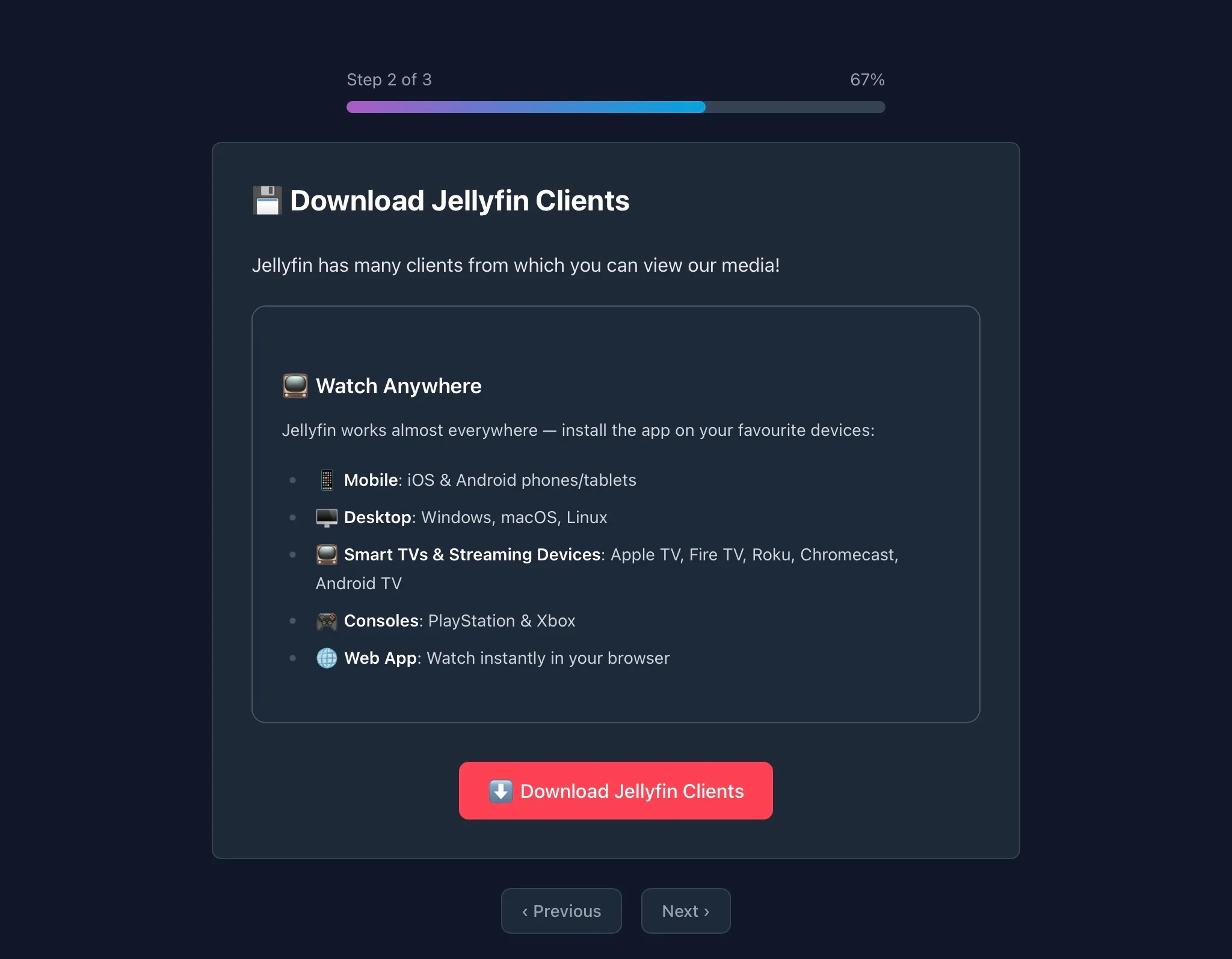
Install Jellyfin on the device you plan to watch on. Here are the direct links:
- Install the appropriate client for your device.
- Click Next once complete.
Step 5: Optimize Playback (Onboarding 3/3)
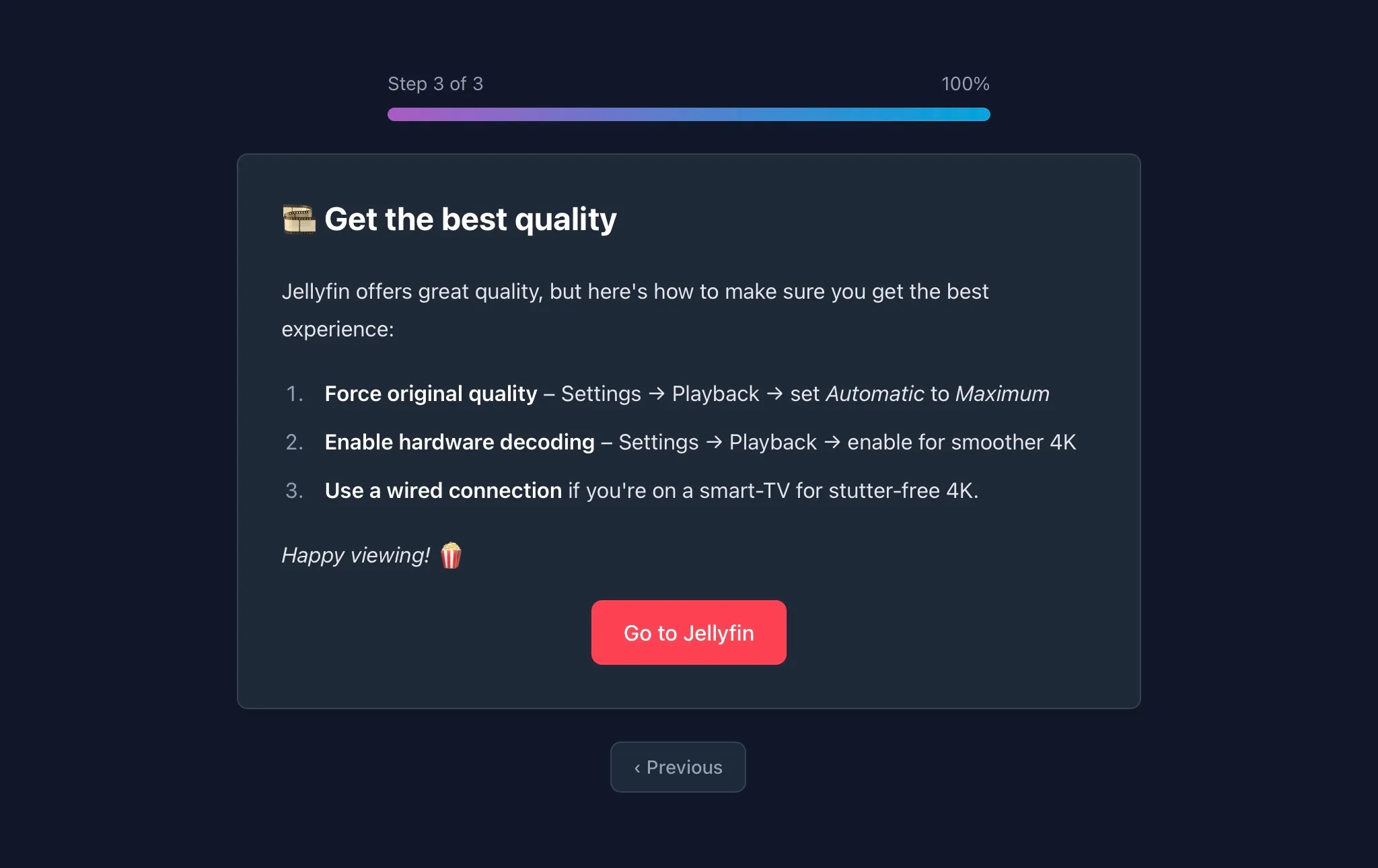
- Set playback quality to Original or the highest available setting.
- Enable hardware decoding if supported by your device.
- For best 4K stability, a wired Ethernet connection is recommended.
- Click Go to Jellyfin.
Step 6: Open the Jellyfin App and Add the Server
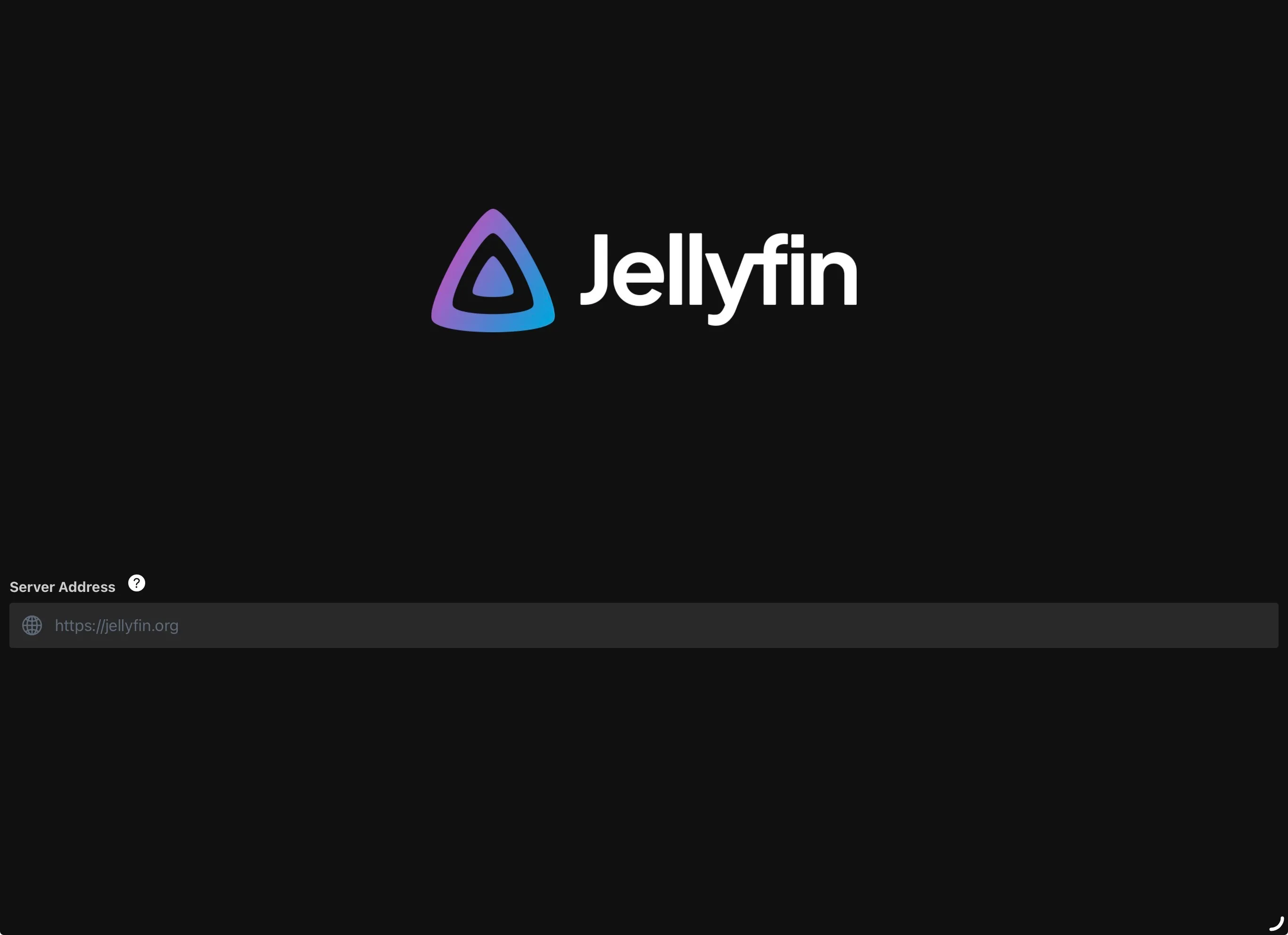
- Open the Jellyfin app on your device.
- When prompted for a server address, enter the server URL.
Step 7: Enter The Deep Zone Server URL
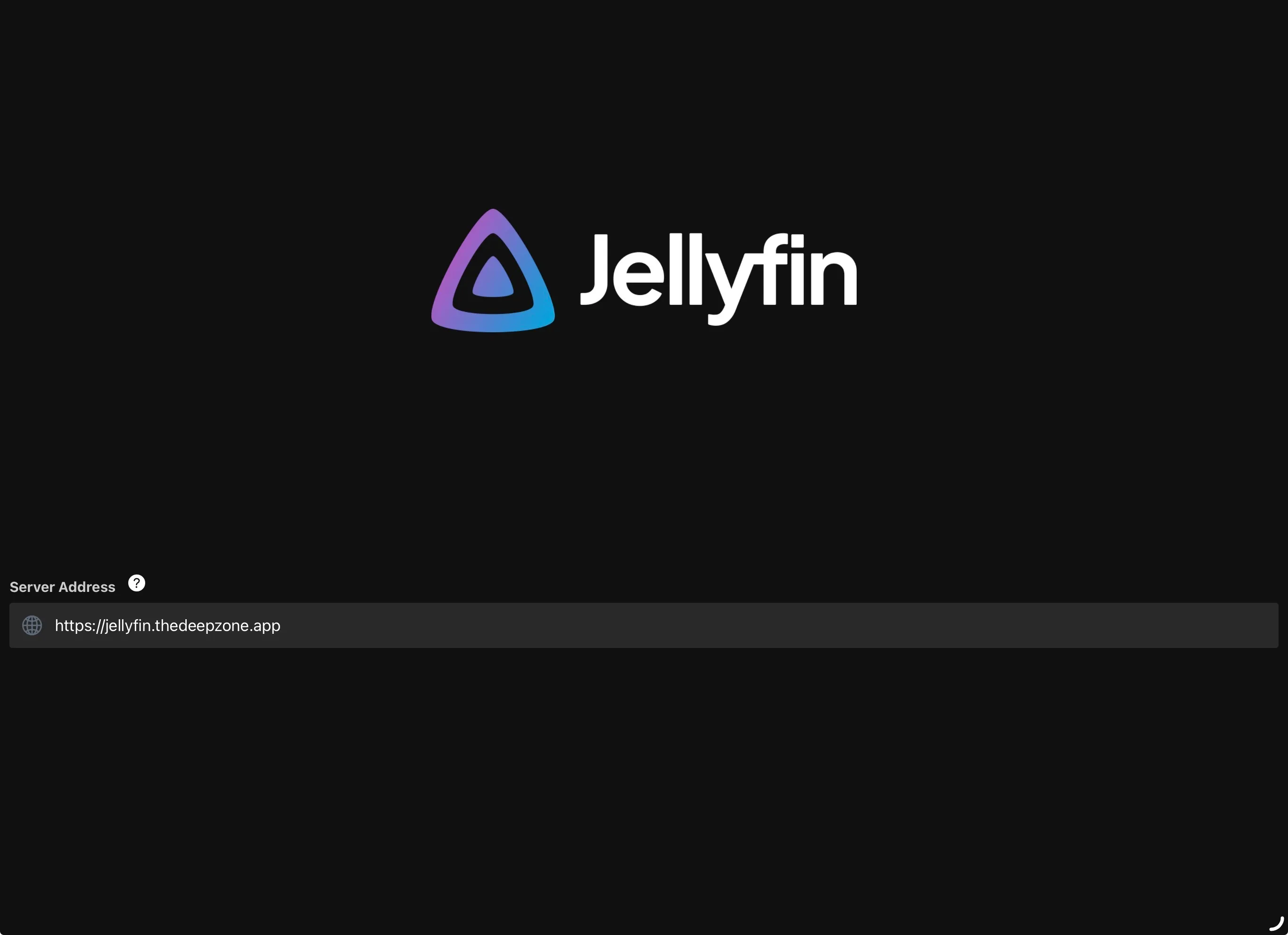
- Use the following address:
https://jellyfin.thedeepzone.app
Step 8: Sign In
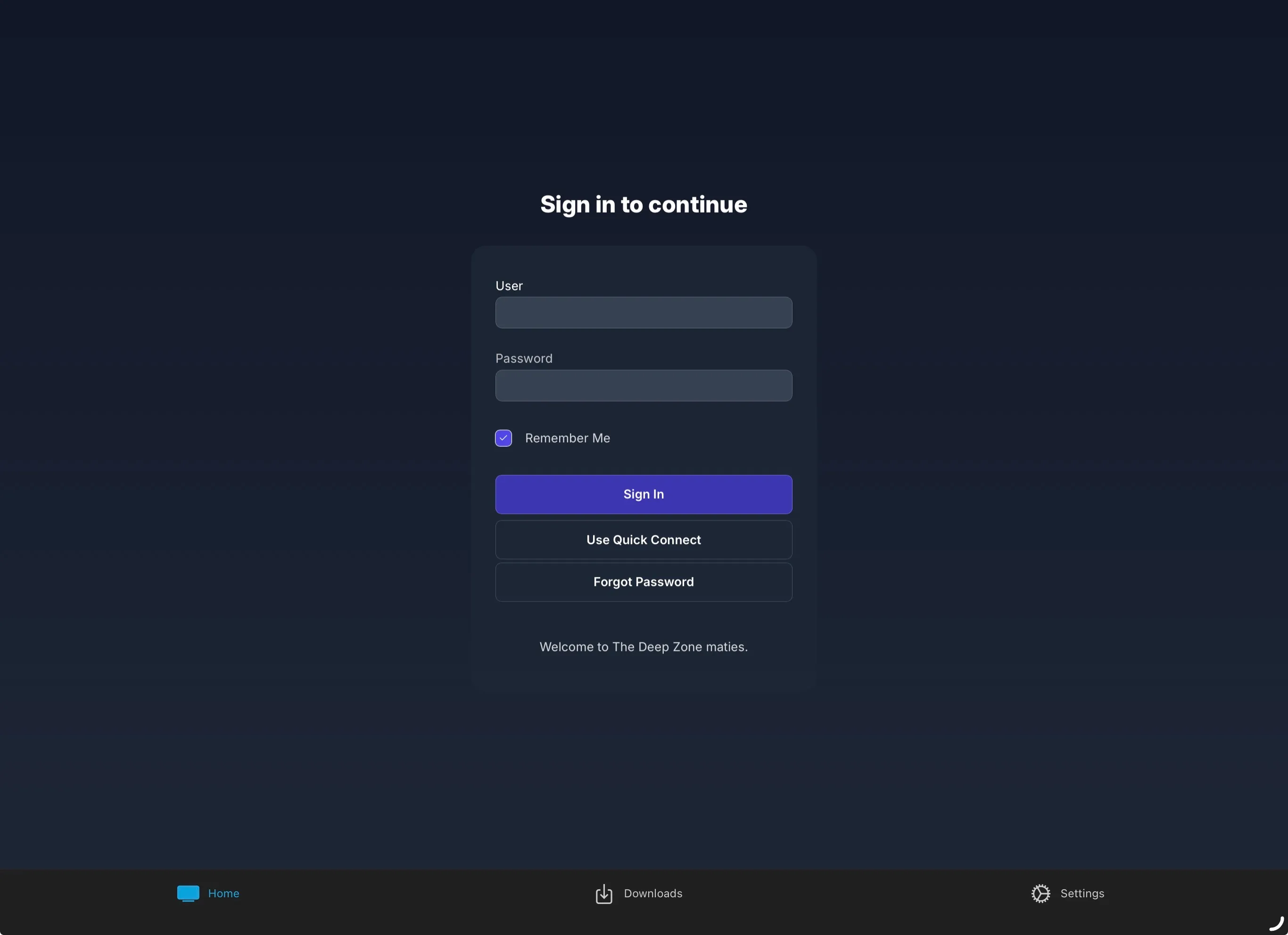
- Enter your Jellyfin username and password.
- Select Remember Me if this is a personal device.
- Click Sign In.
Step 9: Confirm Login Success
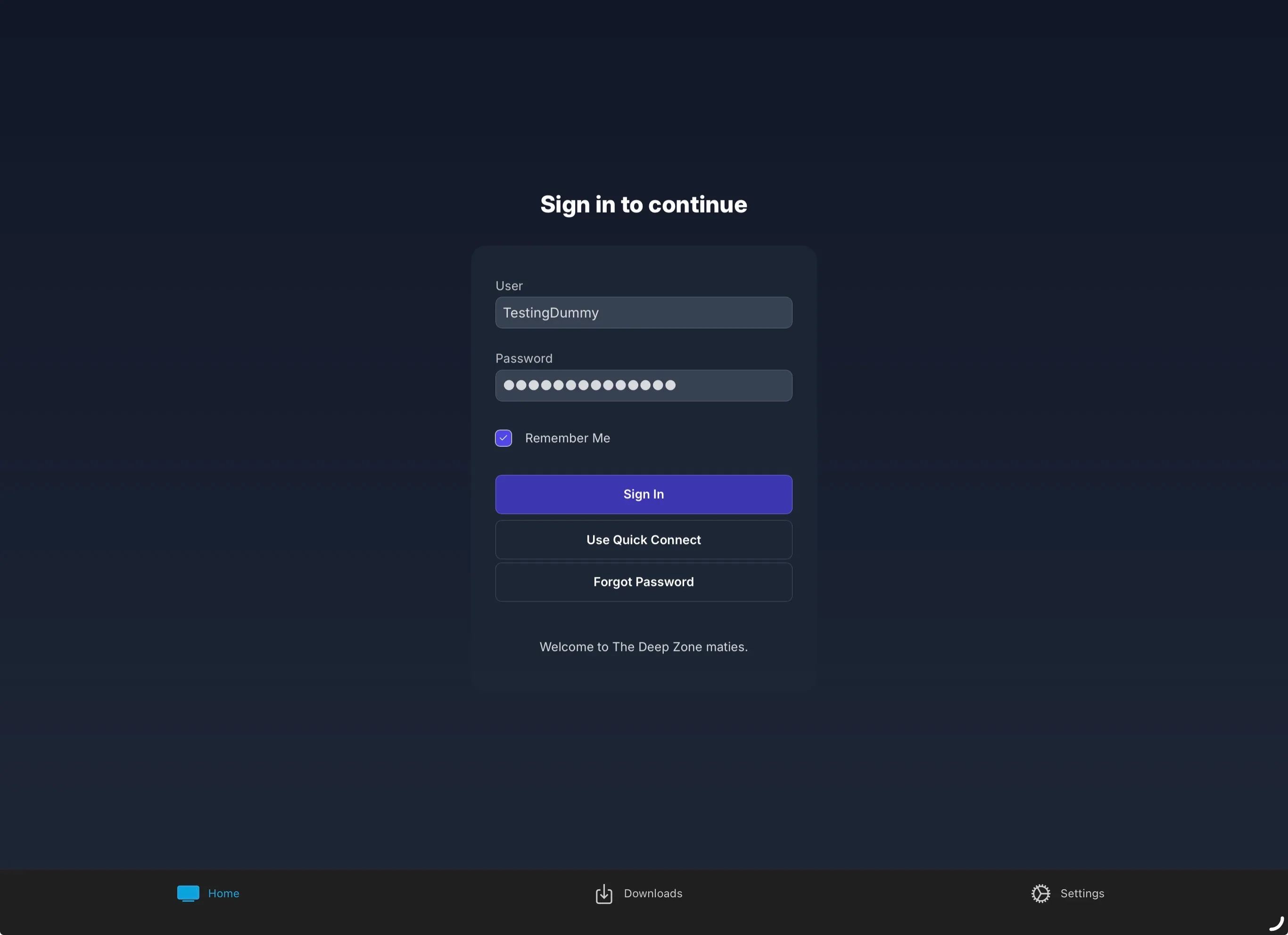
- Verify your account appears correctly.
- If necessary, select your user profile and proceed.
Step 10: Home Screen Overview
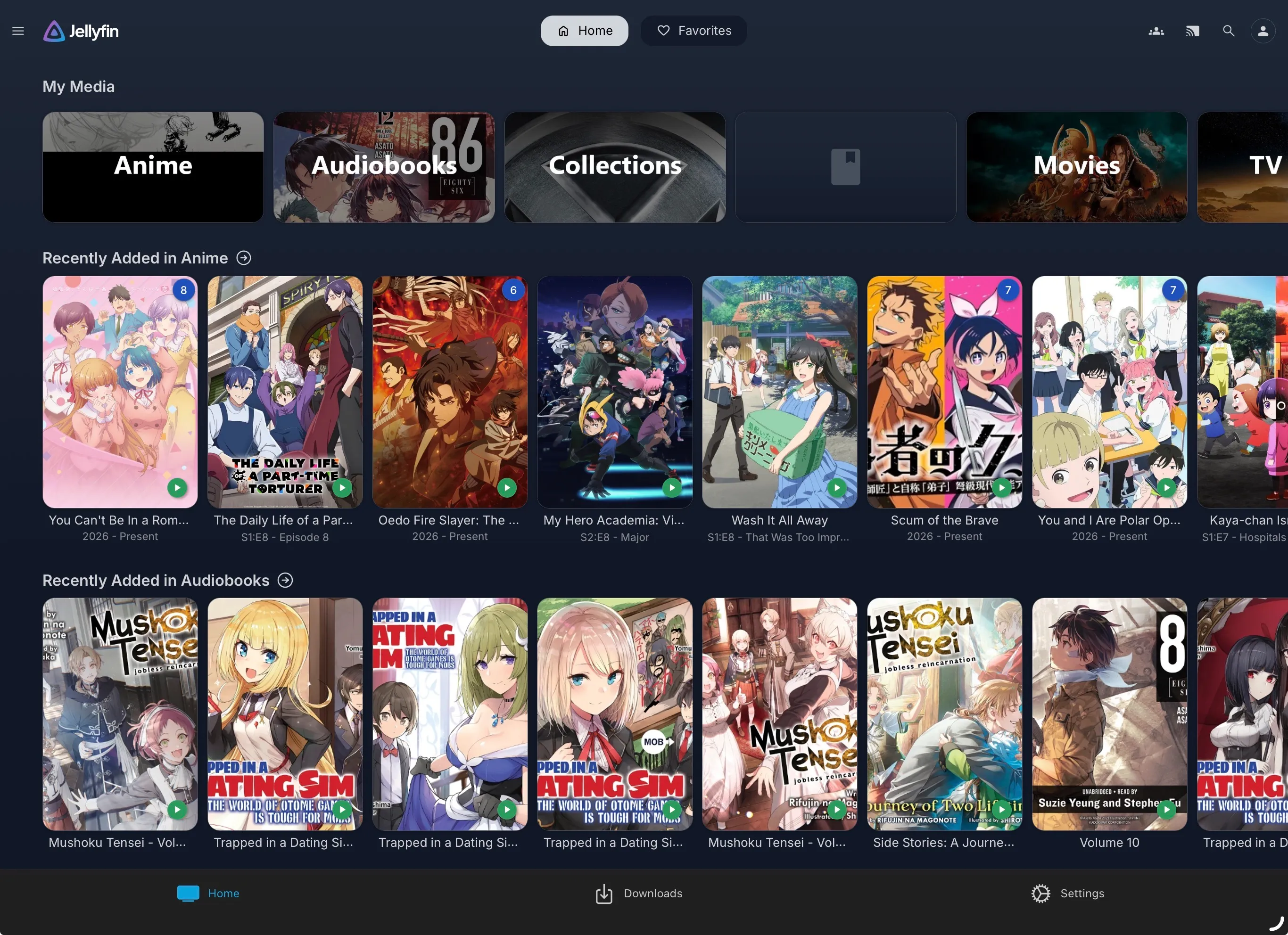
- You should now see your available libraries.
- Use Home for recently added and recommended content.
- Use Downloads for offline viewing (if supported by your client).
- Use Settings to adjust playback, subtitles, and streaming options.
Step 11: Customize Your Sidebar (Optional)
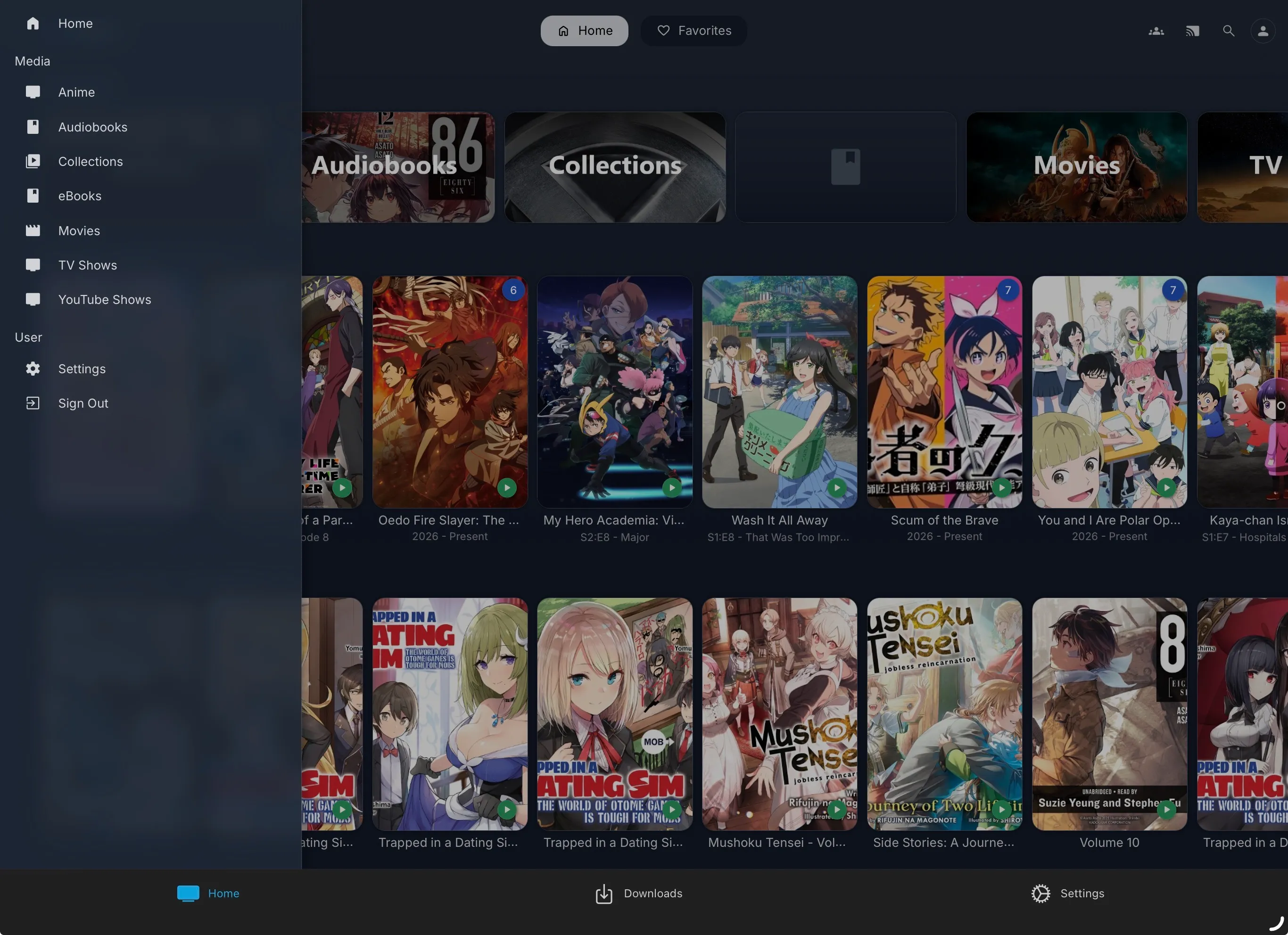
- Open the left sidebar menu.
- Pin the libraries you use most frequently (Anime, Movies, TV Shows, etc.).
- Your selections will determine what appears on your main navigation screen.
Setup Complete 🎉
- Your account has been created and verified.
- Your Jellyfin client is connected to The Deep Zone server.
- Playback settings are optimized for quality.
- Your preferred libraries are accessible.
Enjoy The Deep Zone.