
Audiobookshelf Setup – Complete Walkthrough
Request access first. Then choose the app you want to use.
Step 1: Submit Access Request
- Enter your desired Username.
- Enter your Email Address.
- Create a Password that meets the listed requirements.
- Select Audiobookshelf (Audiobooks & Podcasts).
- Submit the form and wait for confirmation.
Step 2: Choose Your App
Open a section below. Expanding one will push the others down.
Audiobookshelf (Official App)
Use the official Audiobookshelf app or the web interface.
Mobile App Login
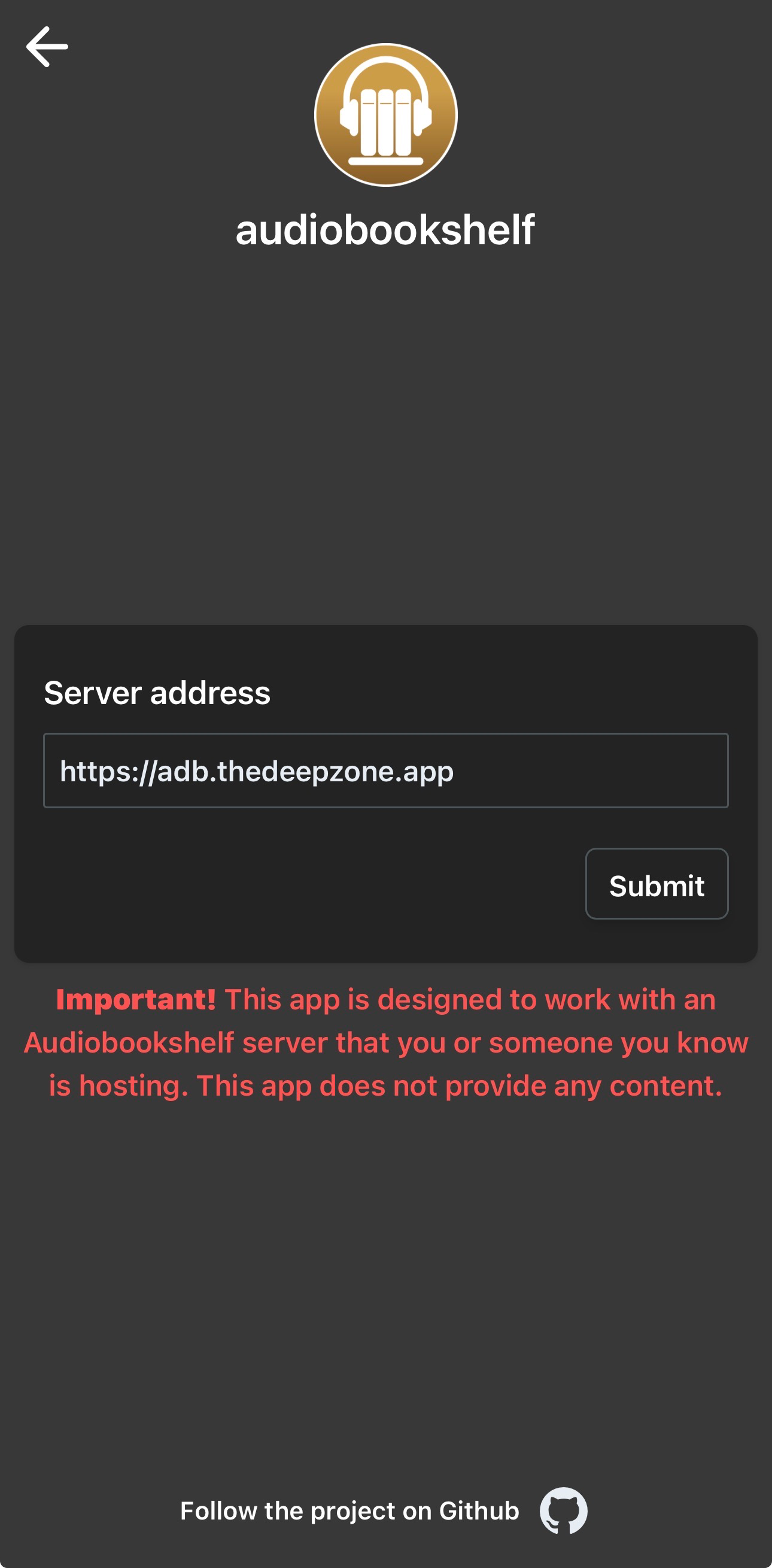
- Enter server:
https://adb.thedeepzone.app - Tap Submit.
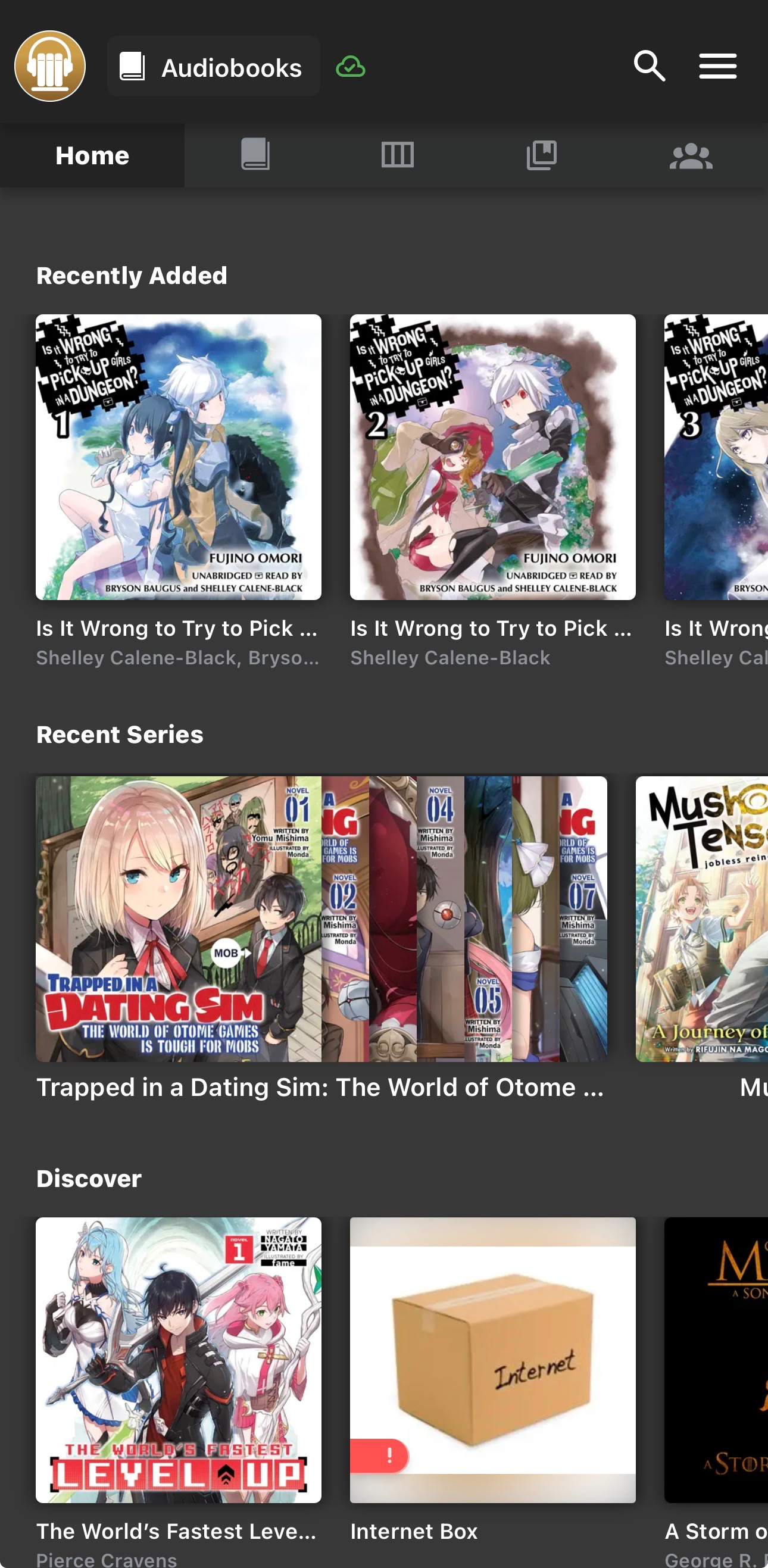
- Enter your Username and Password.
- Select your library (Audiobooks).
- Tap Start Listening.
Web Login
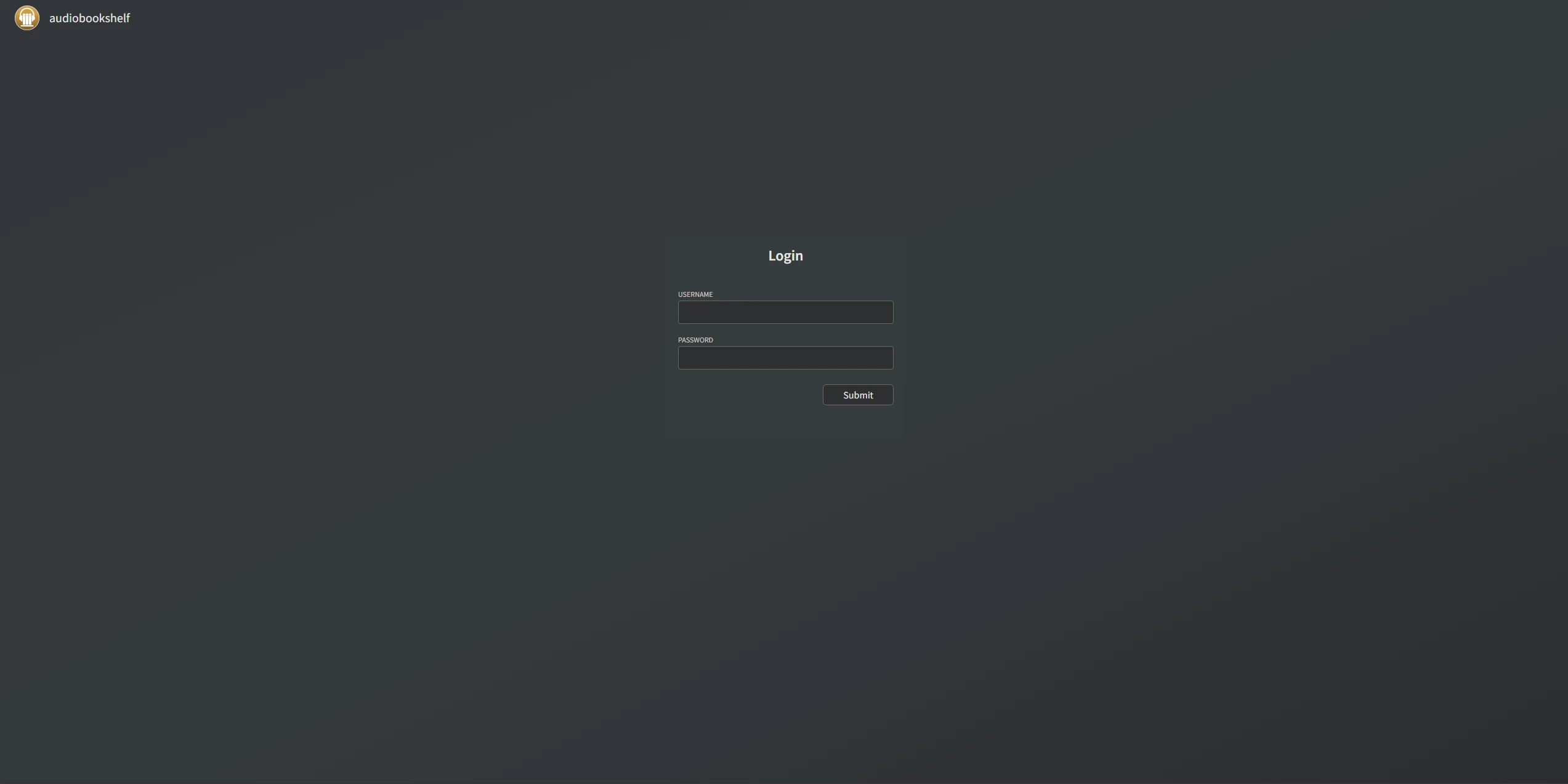
- Go to
https://adb.thedeepzone.app - Enter your Username and Password.
- Click Submit.
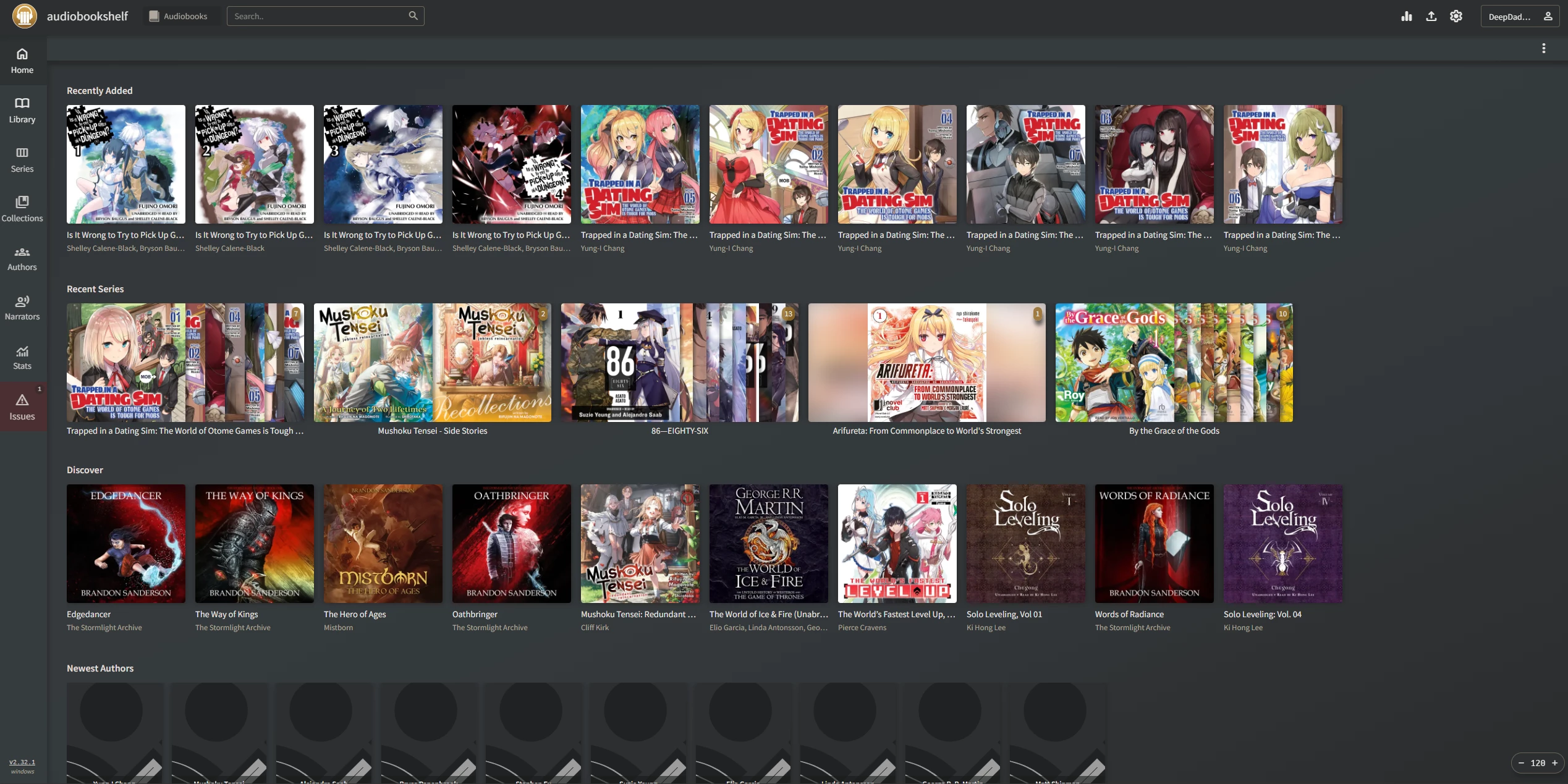
You should now see your full library dashboard.
Still (iOS Only)
A clean, iOS-only Audiobookshelf client.
Connect to the Server
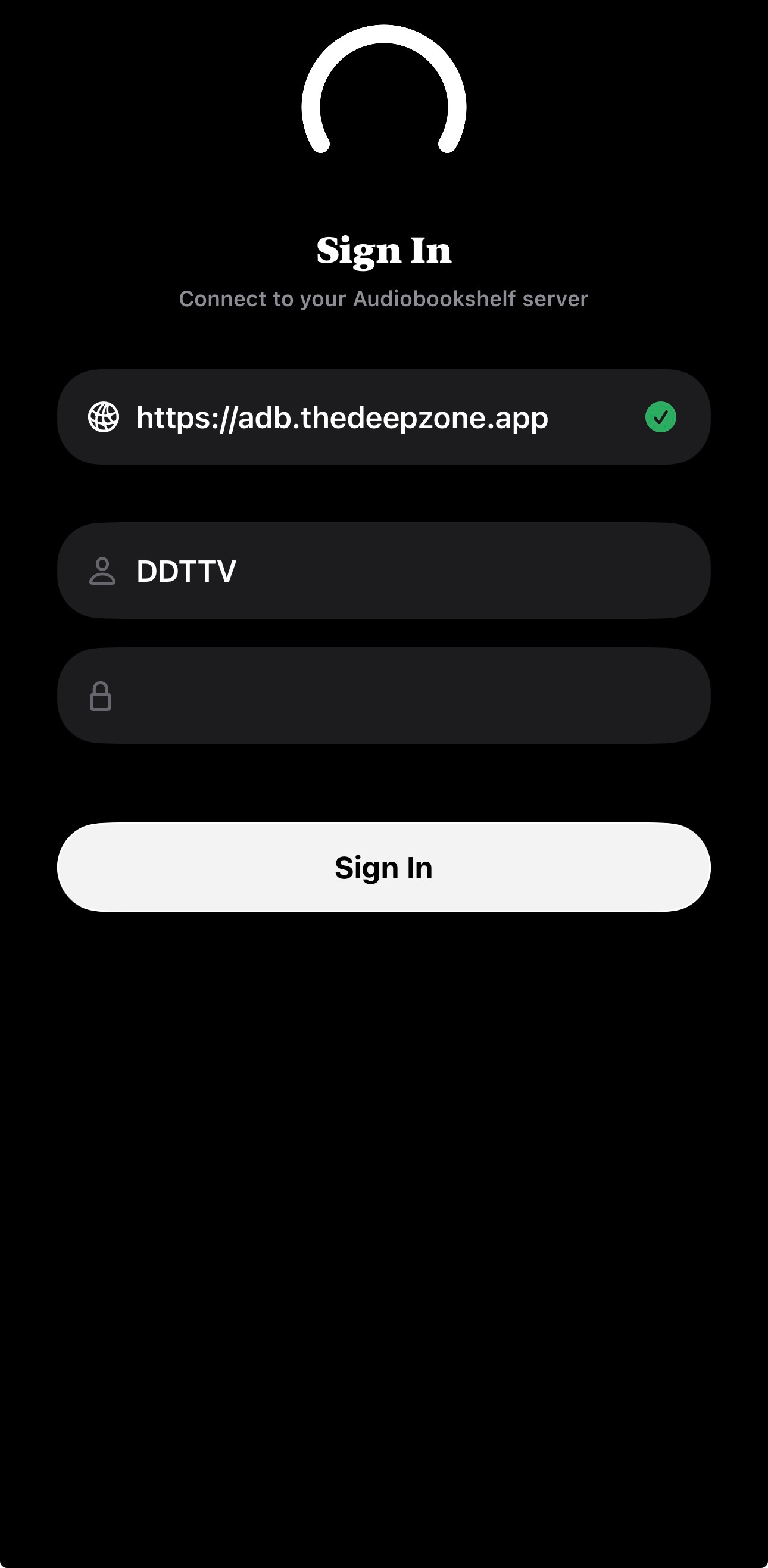
- Enter server:
https://adb.thedeepzone.app - Sign in with your Audiobookshelf Username and Password.
- Tap Sign In.
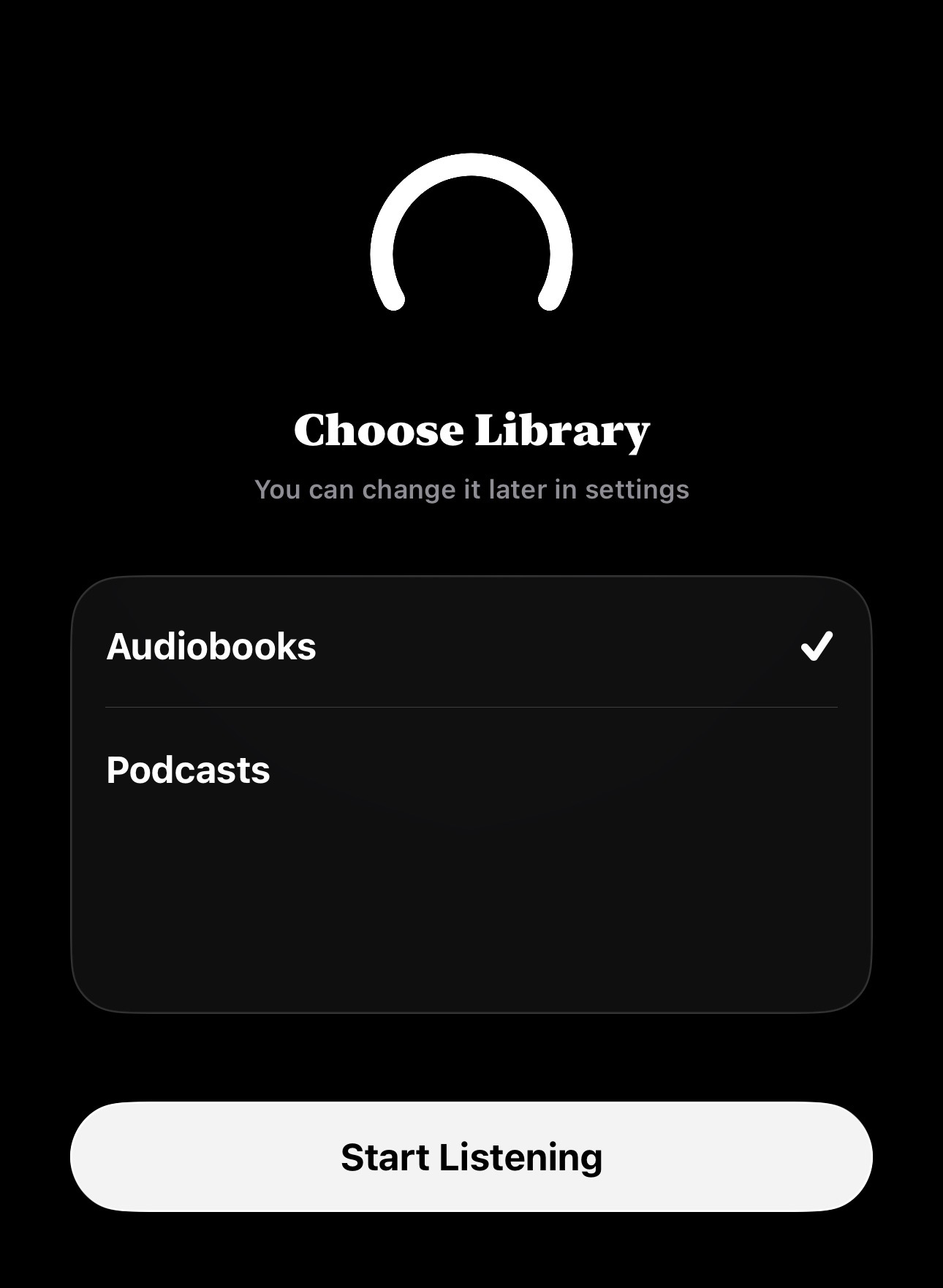
- Select Audiobooks as your library.
- Tap Start Listening.
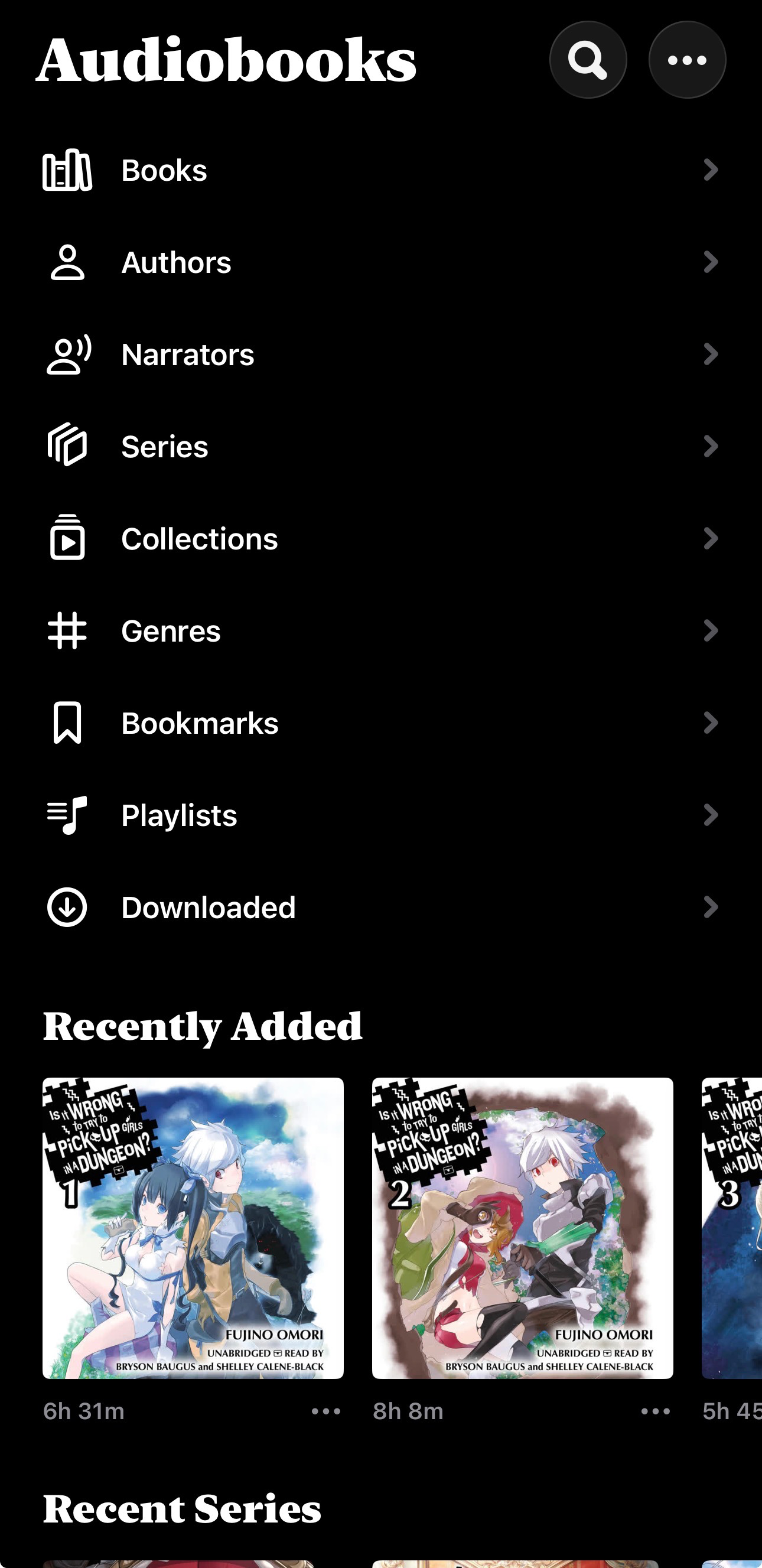
You’re in. If you ever need to switch libraries, you can do it later in settings.
Plappa (Recommended, iOS)
Plappa is the recommended iOS client. It’s free, with a small one-time unlock for some cosmetic extras. It also supports connecting via Jellyfin if you prefer a single login.
Option A: Connect Directly to Audiobookshelf
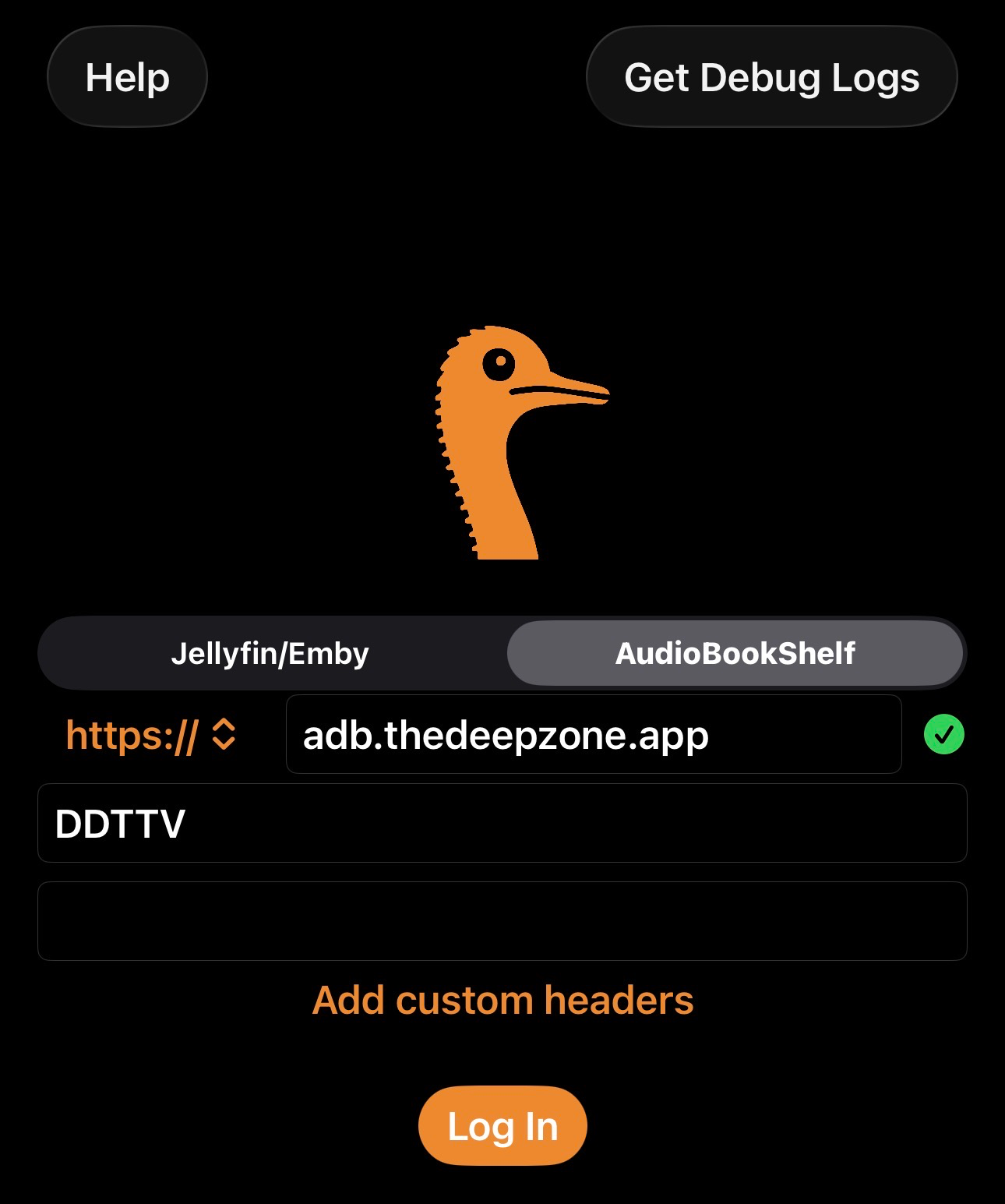
- Choose AudiobookShelf as the server type.
- Enter server:
https://adb.thedeepzone.app - Enter your Audiobookshelf Username and Password.
- Tap Log In.
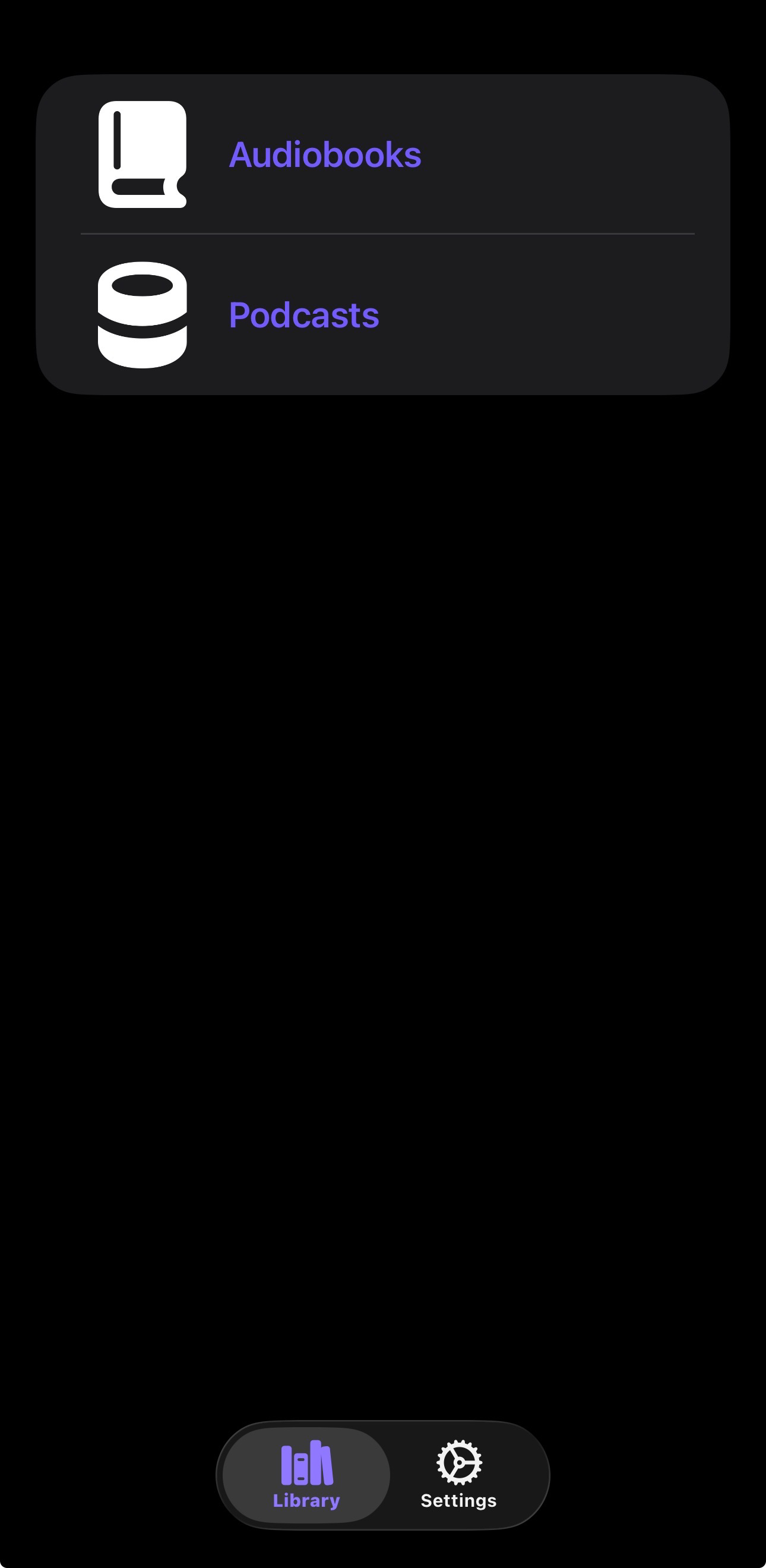
- Select the library desired.
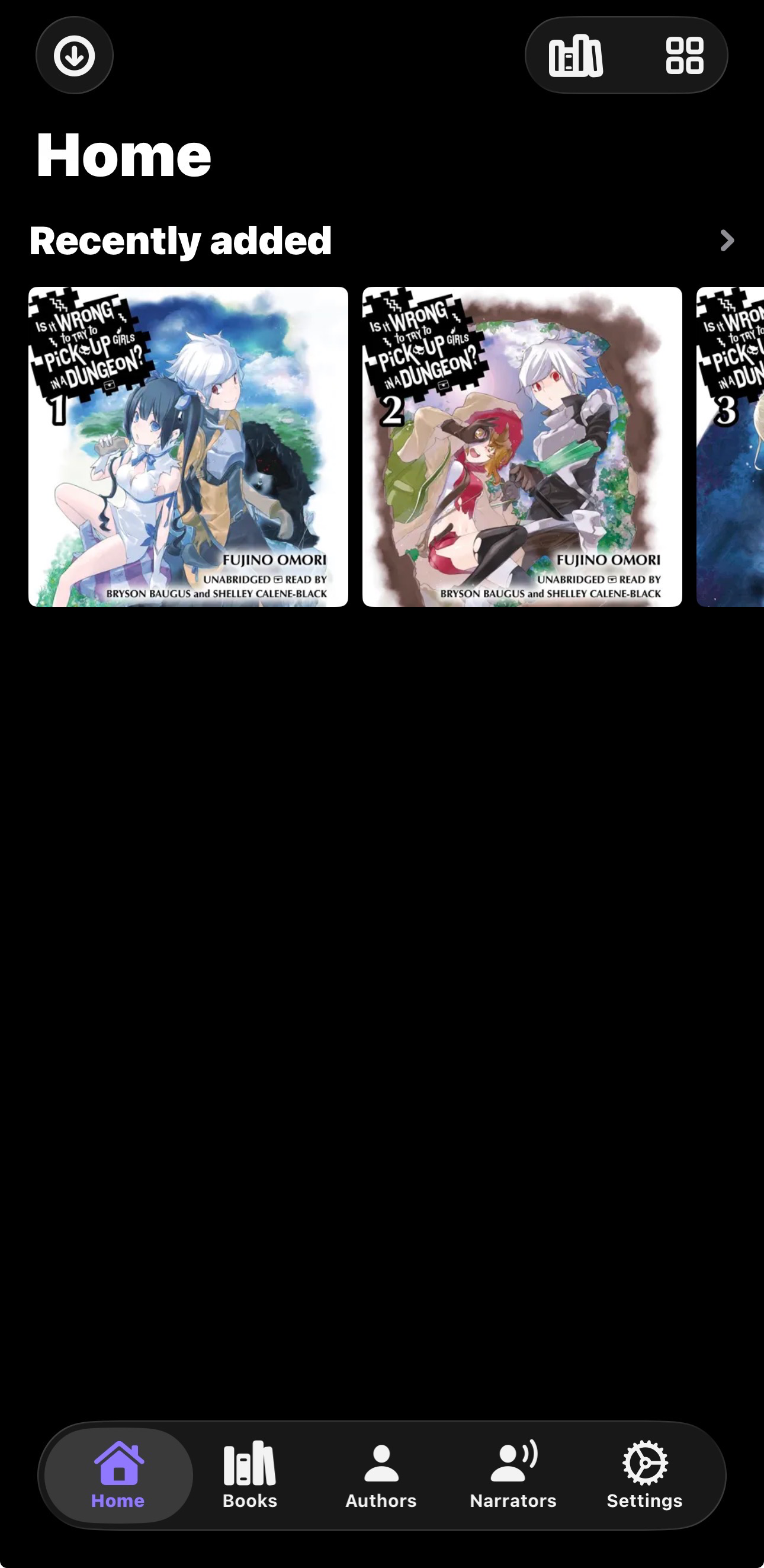
Once connected, pick Audiobooks and you’re ready to go.
Option B: Connect via Jellyfin (One Account for Everything)
If you already use Jellyfin, Plappa can connect to Jellyfin instead. This lets you keep a single Jellyfin login and still access the audiobook library.
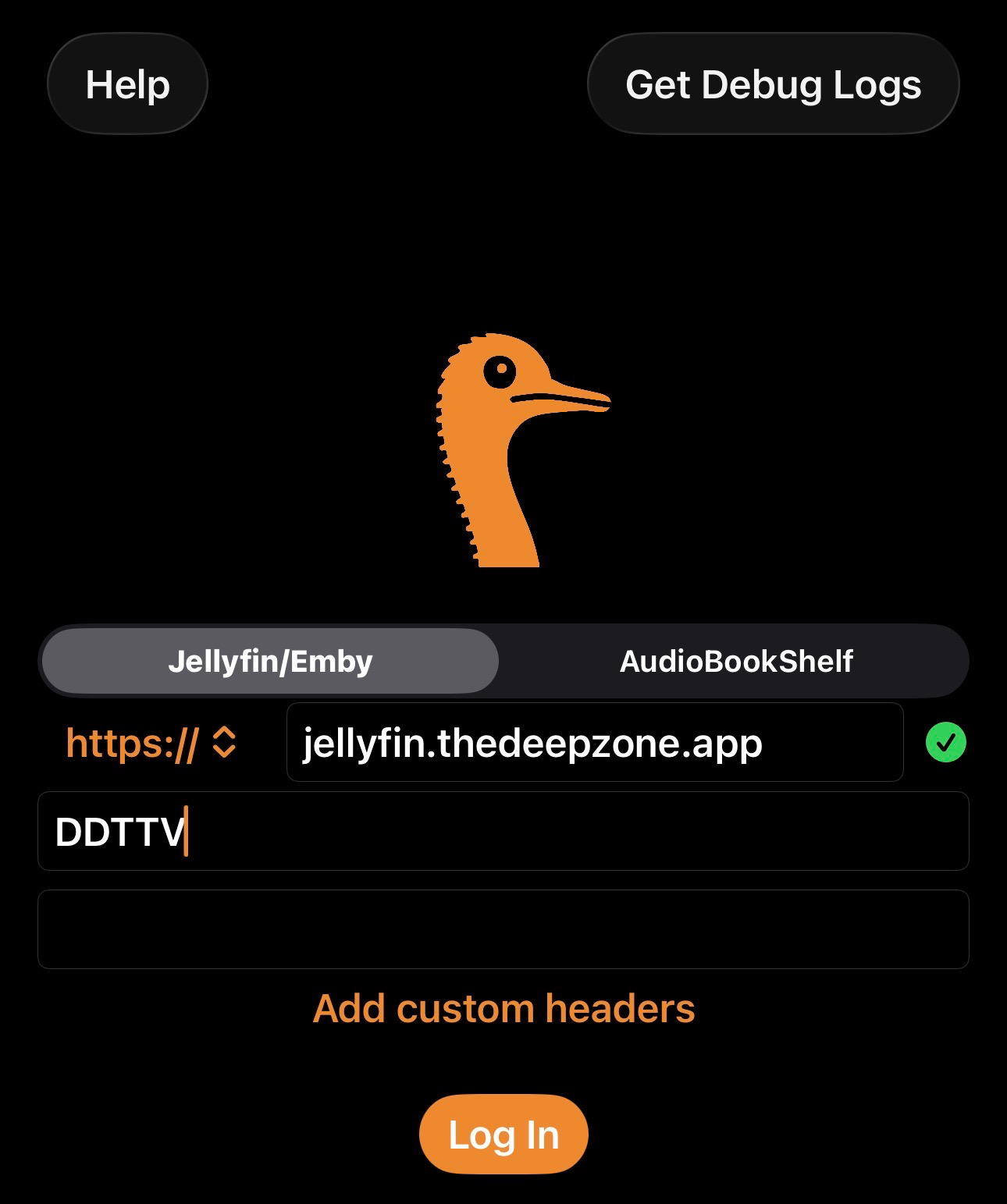
- Choose Jellyfin/Emby as the server type.
- Enter server:
https://jellyfin.thedeepzone.app - Enter your Jellyfin Username and Password.
- Tap Log In.
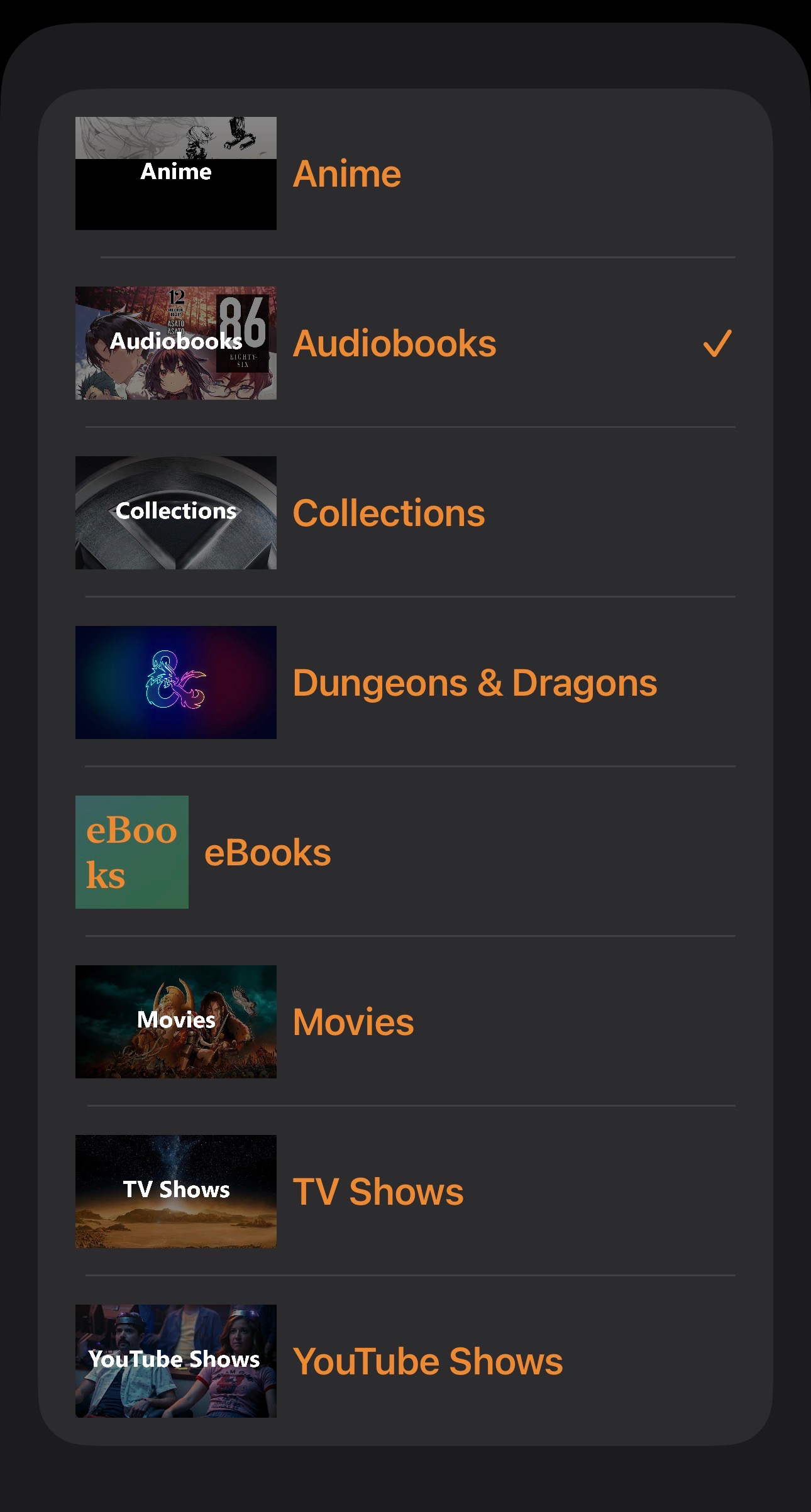
- Select the library desired.
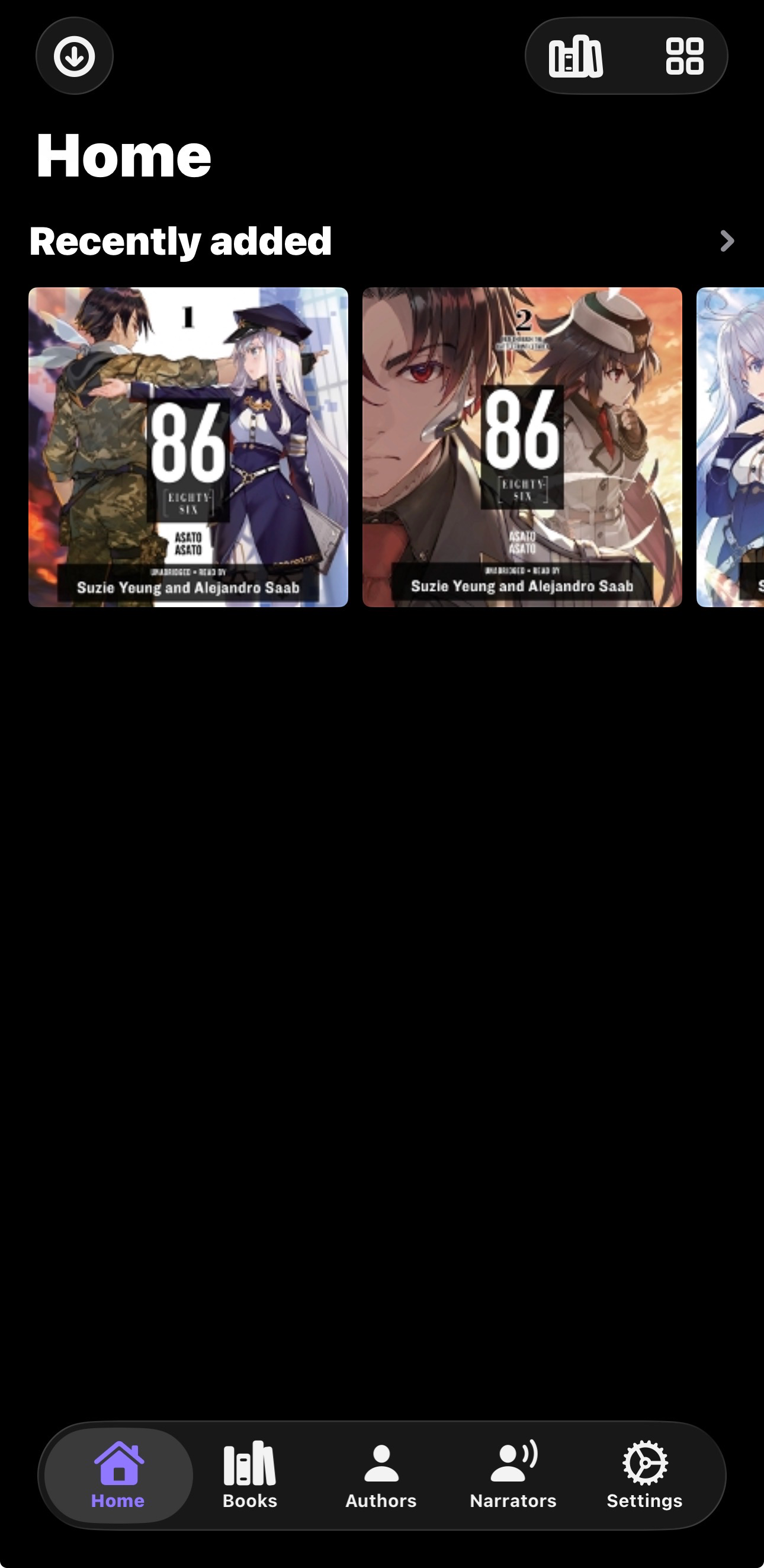
Select the Audiobooks library and you’re set. Same content, fewer accounts.
Setup Complete 🎧
- Your Audiobookshelf account is created and ready.
- You’ve chosen an app and connected to
https://adb.thedeepzone.app. - Optional: Plappa can also connect through Jellyfin if you want one login.